

Mailing Log
The Mailing Log tab contains a list of all mailings sent to the selected guest from the Mailings module. The tab helps you quickly find the required mailing, see when and through which channel a message was sent, and check its delivery status.
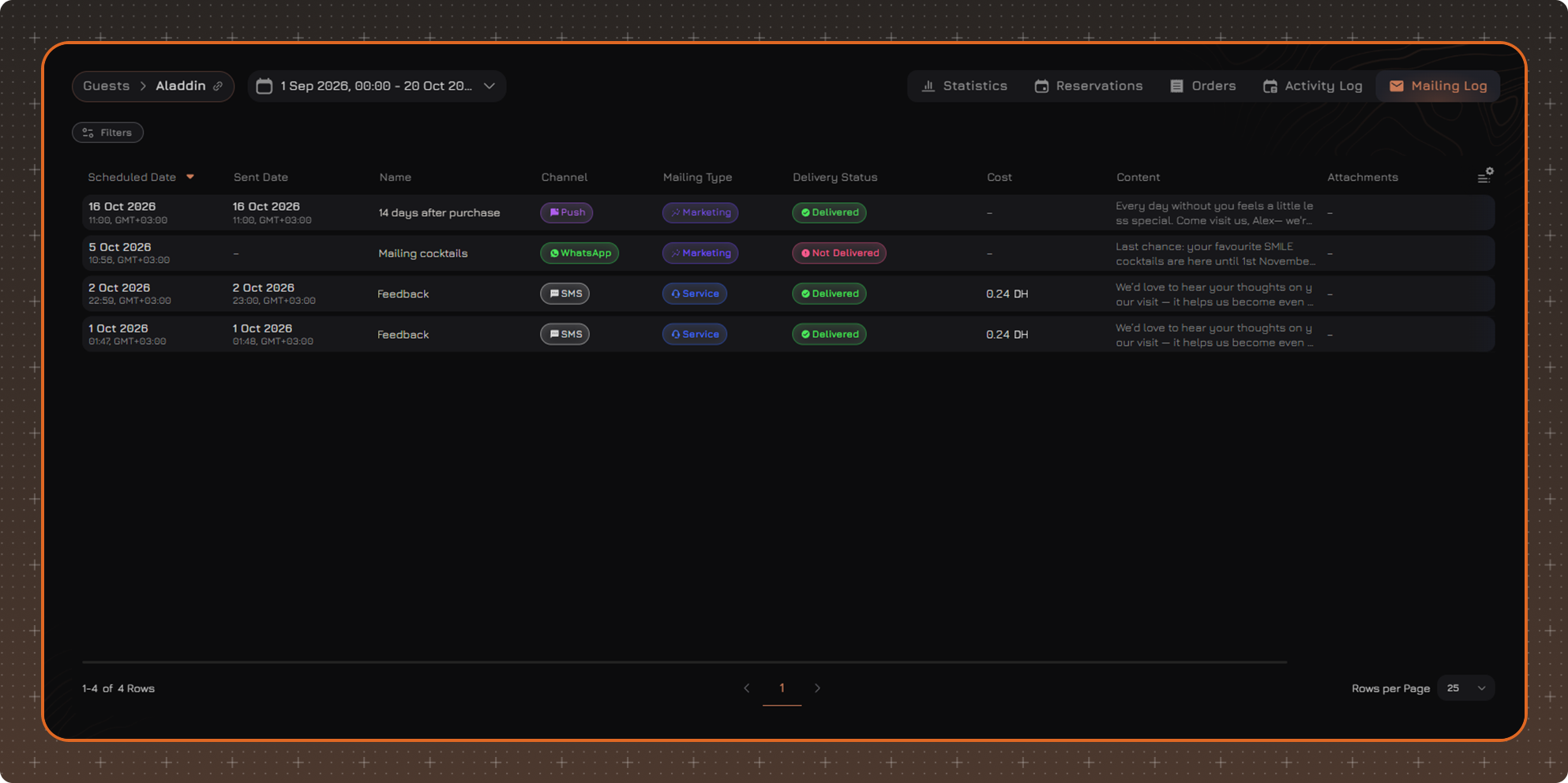
Each row corresponds to a separate message. The same messages for all guests are displayed in the general Mailing Log.
Dates in the table are displayed in the user's time zone.
Message Details
Click a row in the table to open the Mailing Log Info sidebar with detailed information about the message: dates, channel, mailing type, status, cost, recipient, sender, and the full message text.
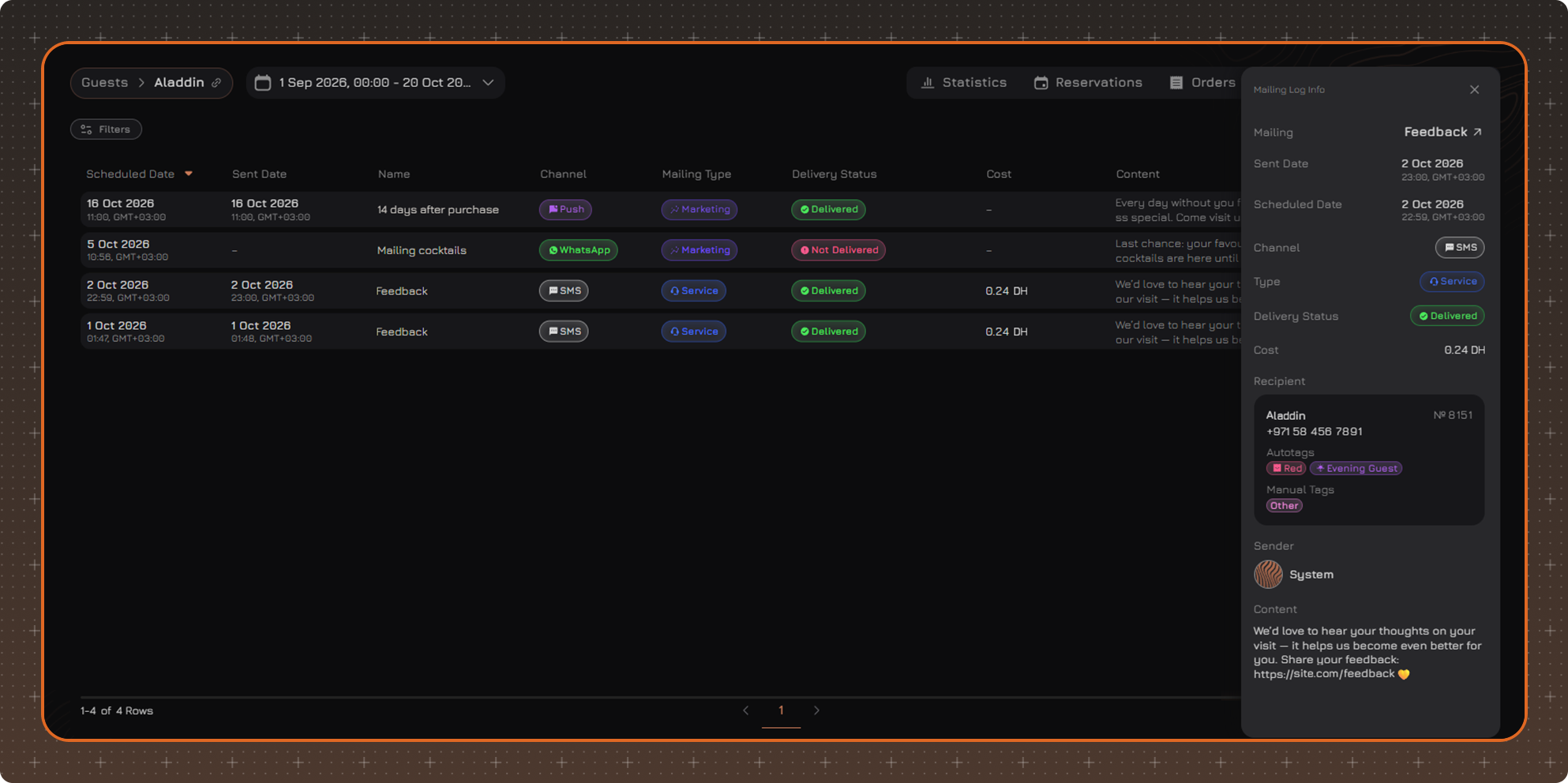
To open the mailing settings, right-click the row and select Go To Mailing. The View Mailing Log option in the same menu opens the sidebar.
You can also open the mailing from the sidebar - click the ↗ icon next to the mailing name.
Data Filtering
To change the period, select the required date range in the period field at the top of the page. The period filters records by the scheduled sending date.
For additional conditions, click Filters.
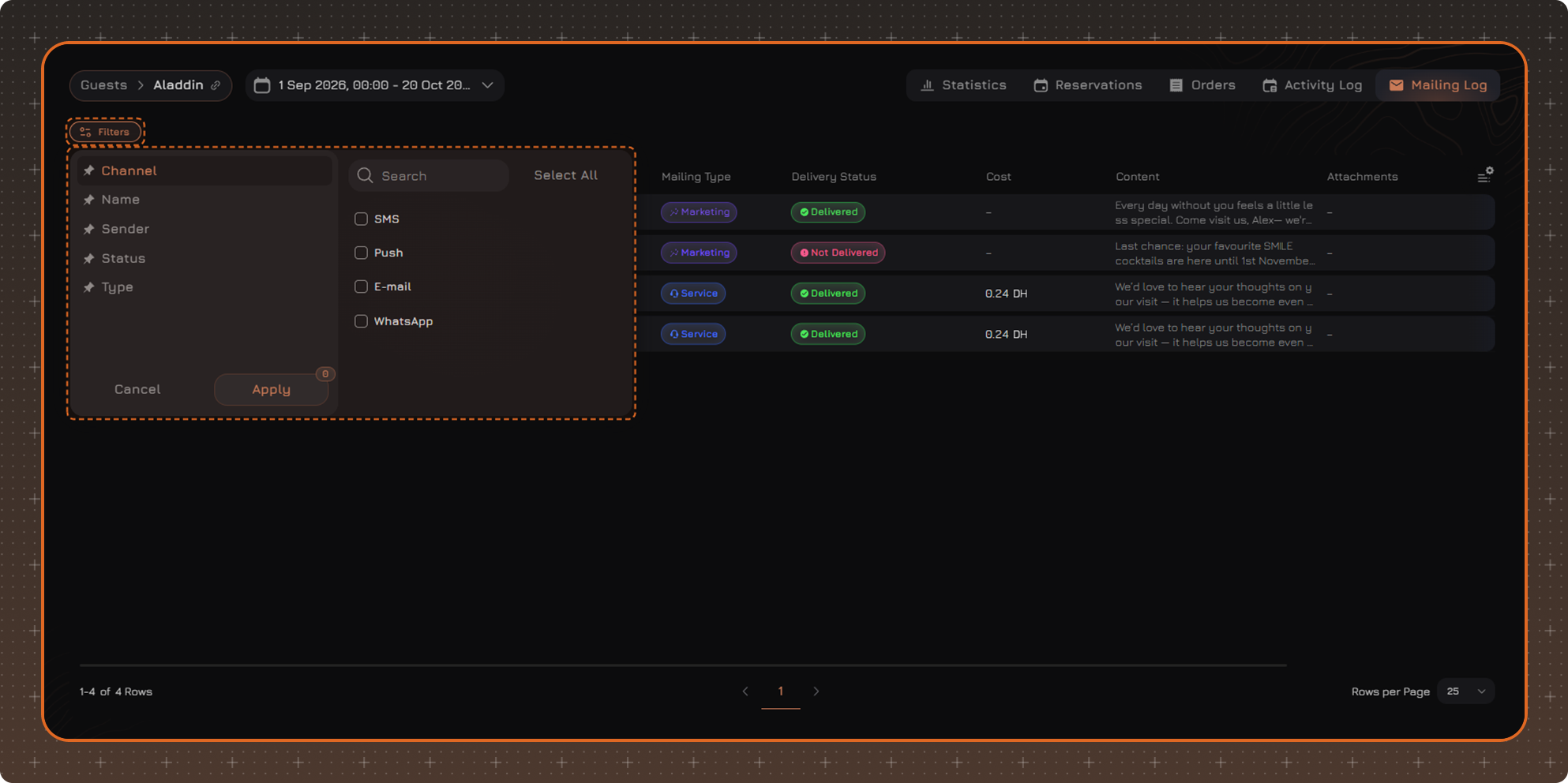
In the panel, you can filter records by the following parameters:
✔ channel
✔ name
✔ sender
✔ status
✔ type
After selecting the required values, click Apply.
Applied filters are displayed above the table. To remove an individual filter, click × next to its name. To reset all filters, click Clear Filters.
Note. Selected filters are saved when switching between guest profiles. The filters are reset after you log out.
Table Settings
To change the set of displayed columns, click the table settings button in the upper right corner.
In the panel that opens, you can:
✔ Select the columns to display
✔ Change the column order - drag a column in the list by the icon to the left of its name
✔ Pin the required columns - click the pin icon to the right of the column name. Pinned columns move to the beginning of the table
✔ Restore the default settings with the Reset to Default command
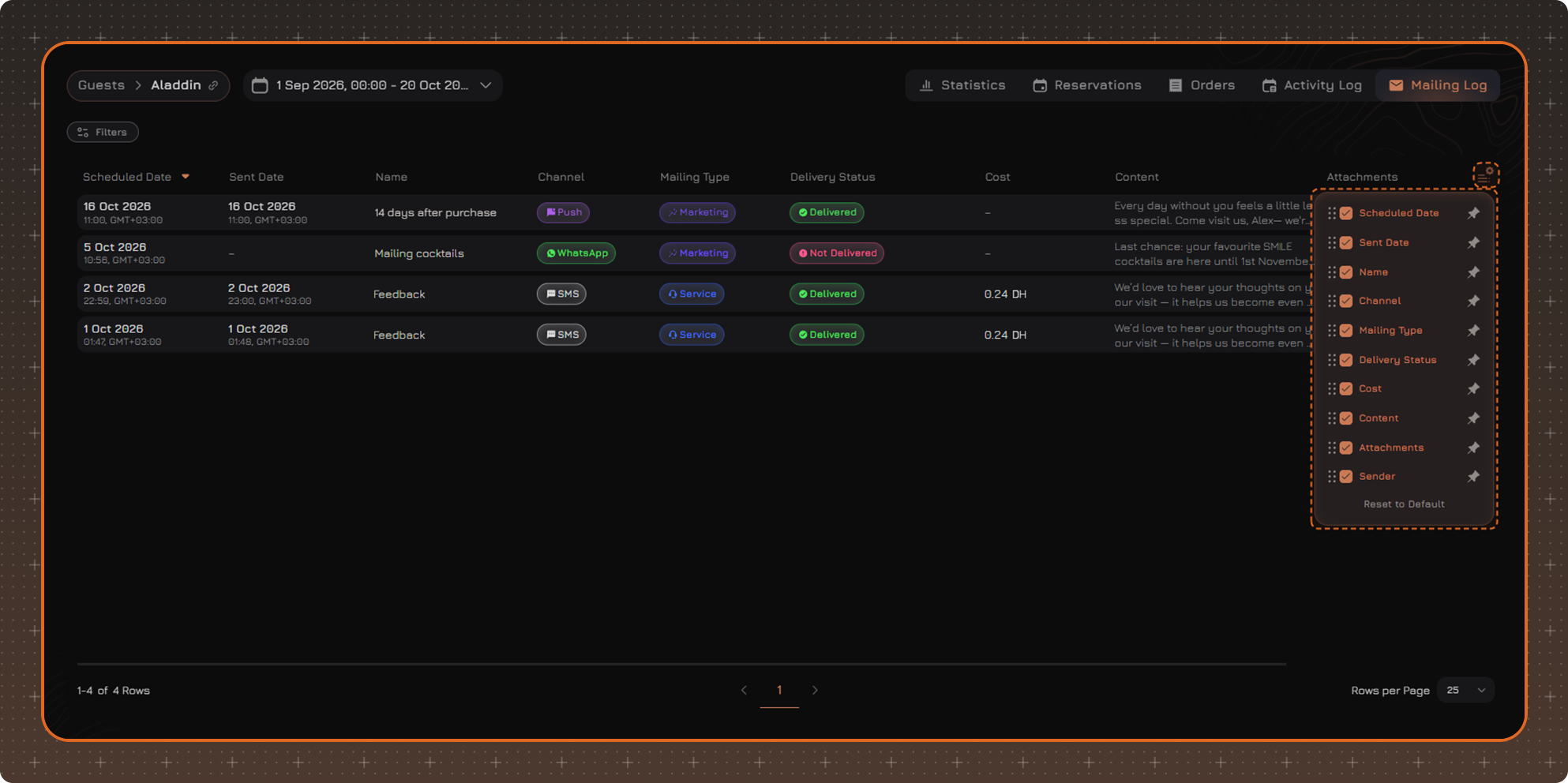
By default, the table displays the following columns:
- Scheduled Date - the date and time for which the sending is scheduled. By default, the table is sorted by this column, newest first
- Sent Date - the date and time the message was actually sent
- Name
- Channel
- Mailing Type
- Delivery Status
- Cost - the cost of sending an SMS
- Content
- Attachments
- Sender