

Guest List
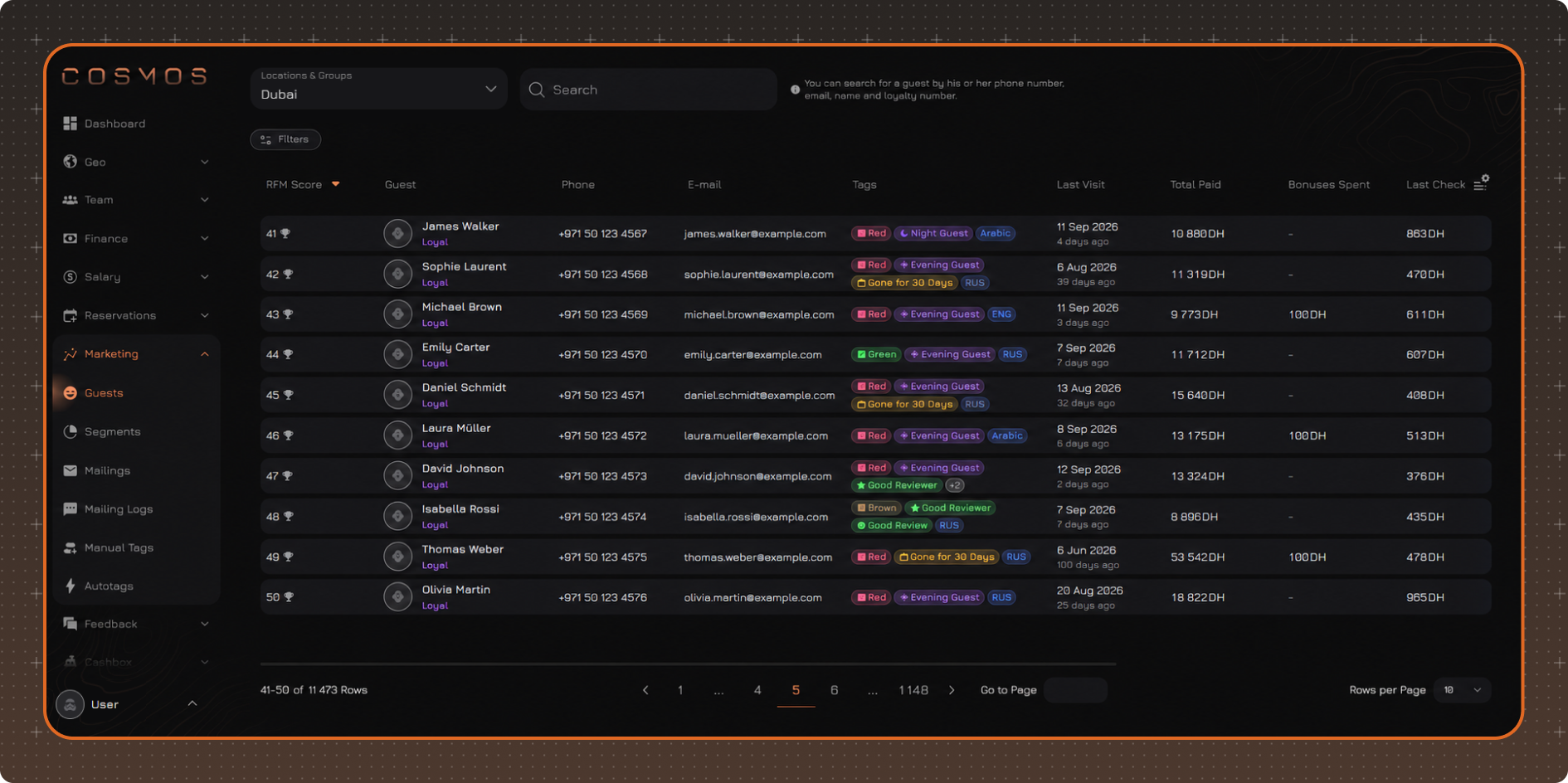
The Guests page displays a list of guests and detailed information about each of them.
This page combines guest profiles, visit history, loyalty program data, tags, and other guest information in a single table. By combining search, filters, and table column settings, you can quickly create guest selections and display only the data needed for a specific task.
For example, you can find guests with specific tags, analyze their spending and visit history, check loyalty program information, or identify guests whose favorite location matches the selected locations or location groups.
Location Selection
In the location selector, you can select an individual location, a location group, or All.
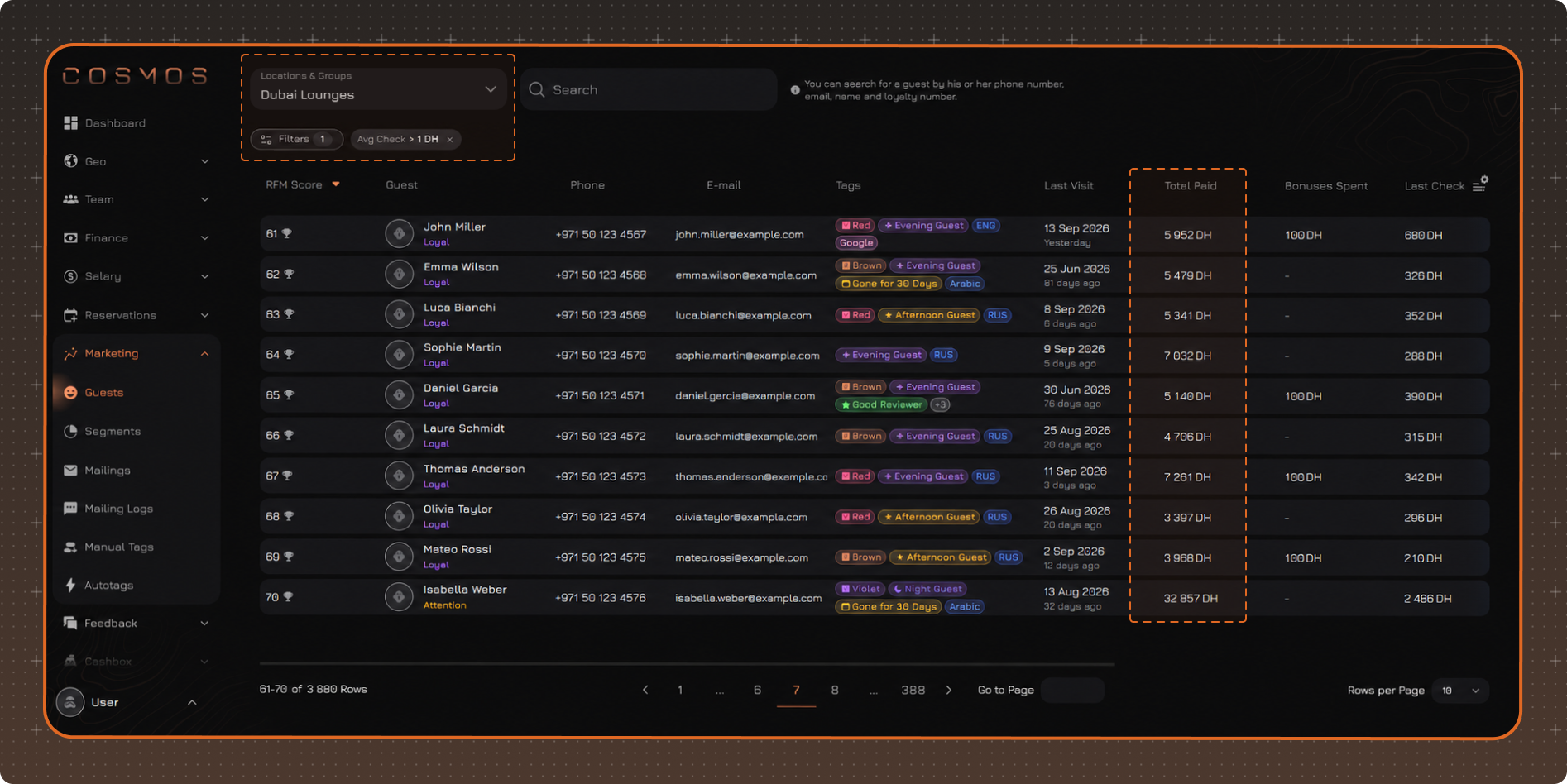
Selecting a location or group does not change the list of guests in the table. It determines which locations are used to display statistics for each guest.
If a guest has activity at the selected location, the table displays their metrics for that location, such as the last visit and total amount spent. If there was no activity at the selected location, dashes are displayed in the corresponding columns.
The selected location is also taken into account when filtering the list. For example, if you select a specific location and set a filter for the amount spent, the table will show guests whose spending at that location meets the specified condition.
For more information about location groups, see Location Groups.
Search
To find a guest, use the search bar above the table.
You can search by first name, last name, primary phone number, email, or loyalty card number.
Table Settings
To change the displayed columns, click the table settings button in the upper-right corner.
In the panel that opens, you can:
✔ select the columns to display
✔ pin the required columns
✔ restore the default settings using Reset to Default
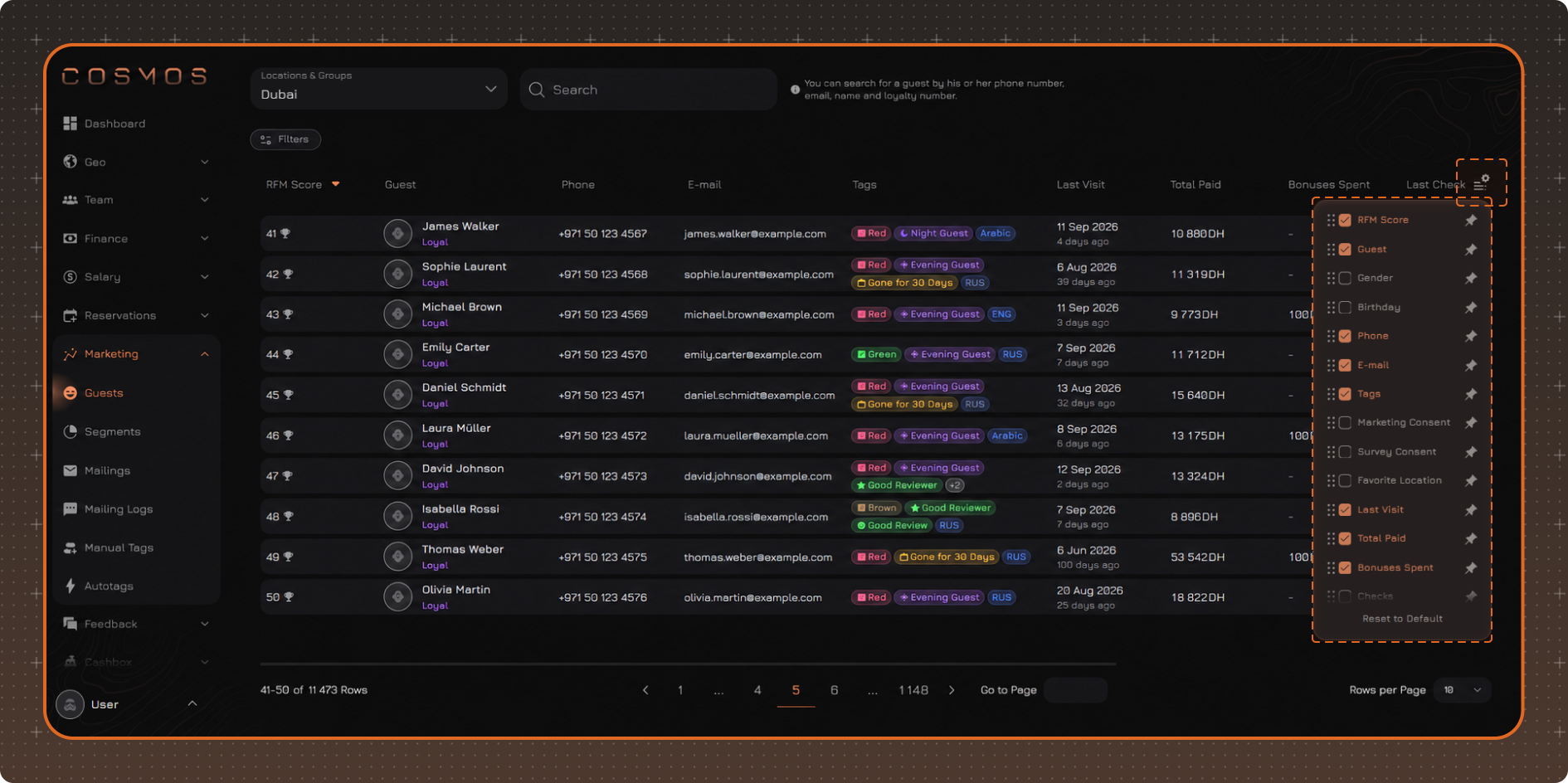
By default, the following columns are displayed in the table:
- RFM Score — the guest's numerical score based on the RFM model
- Guest — the guest's avatar, first name, last name, and current RFM status. Hover over the guest to see their RFM score, a brief description of the current status, and a list of RFM statuses with the percentage of guests in each. The guest's current status is highlighted in the list
- Phone
- Tags — the guest's statuses, autotags, and manual tags. System-assigned statuses are displayed first, followed by autotags and then manual tags
- Last Visit
- Total Paid — the total amount spent by the guest across all locations, including payments made in cash, by card, and with bonuses
- Bonuses Spent — the number of bonuses spent on orders
- Last Check
- Avg Check
- Loyalty Number
- Loyalty Discount — the guest's current loyalty program discount
- Loyalty Bonuses — the number of bonuses in the guest's balance
You can also enable the following columns. Their position in the table follows the column order in the table settings:
- Gender — the guest's gender
- Birthday — the guest's date of birth and age
- Marketing Consent — consent is enabled by default
- Survey Consent — consent is enabled by default
- Favorite Location — the location where the guest has the highest number of checks. If several locations have the same number of checks, the location from the most recent check is displayed
- Checks — the total number of the guest's checks
- Avg Check Per Hour — the guest's average spending per hour. Only checks with a visit duration of at least 30 minutes and an amount of at least 1000 are included in the calculation
- Avg Time — the guest's average visit duration
- Discount — the total amount of discounts received by the guest
- Loyalty Total Spent — the guest's cumulative spending in the loyalty program since registration, so it may differ from Total Paid. If the guest is not registered in the loyalty program, no value is displayed
- Created At — the date when the guest profile was created
- Loyalty Registration — the date when the guest's loyalty card was registered
- Source — the guest acquisition source. When registering for the loyalty program, the guest selects the source. For guests created manually in Guests, COSMOS is assigned automatically, while guests created through the reservation system are assigned TIS
- Notes — notes added to the guest profile
Note. Table settings are saved after the page is refreshed. The settings are reset after you log out.
Filters
If necessary, click Filters to set additional filtering conditions.
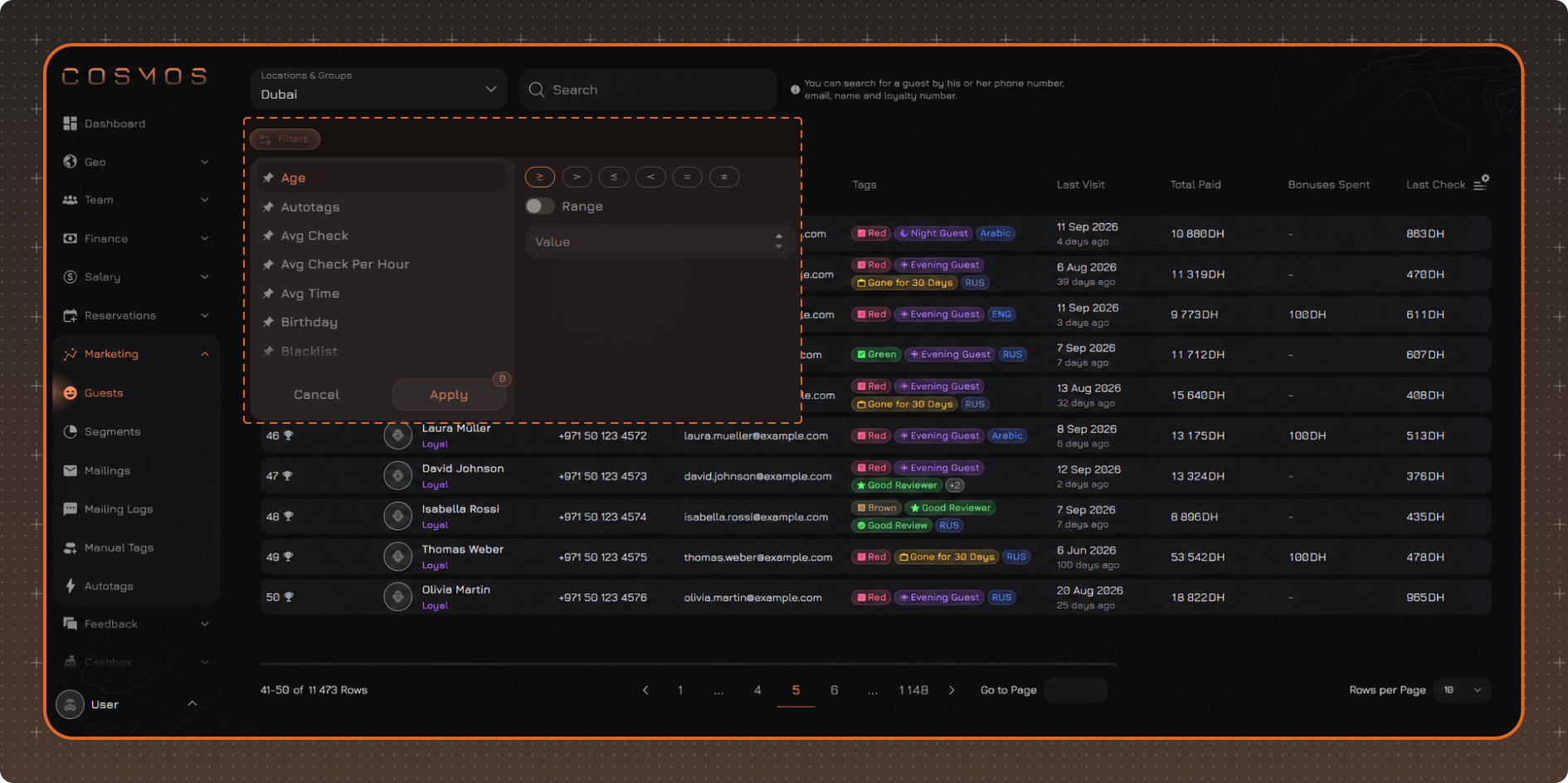
The following filters are available:
- Loyalty Total Spent
- Created At
- Loyalty Registration Date
- Marketing Consent
- Survey Consent
- Tags
- Autotags
- Status
- Blacklist
- RFM Status
- Age
- Avg Check
- Avg Check Per Hour
- Avg Time
- Birthday
- Bonuses Spent
- Checks
- Discount
- Favorite Location
- Gender
- Last Check
- Last Visit
- Loyalty Bonuses
- Loyalty Group
- Notes
- Source
- Total Paid
After selecting the required values, click Apply.
Applied filters are displayed above the table. To remove an individual filter, click × next to its name. To reset all filters, click Clear Filters.
Note. Filter settings are saved after the page is refreshed. The settings are reset after you log out.