

Creating a Reservation
How to create a reservation in the CosmosResto Reservations app on the phone.
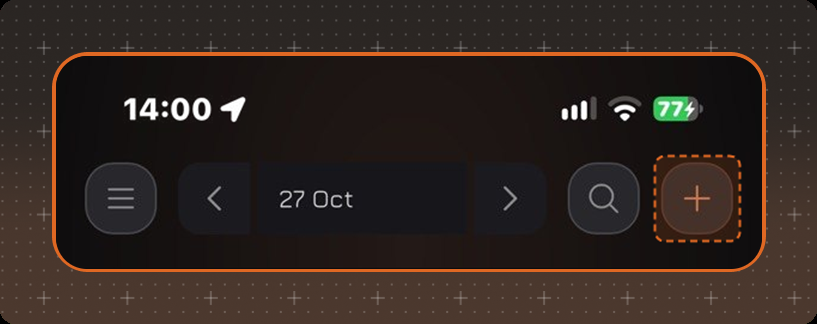
To create a reservation, tap + at the top of the reservation list. The new reservation form opens.
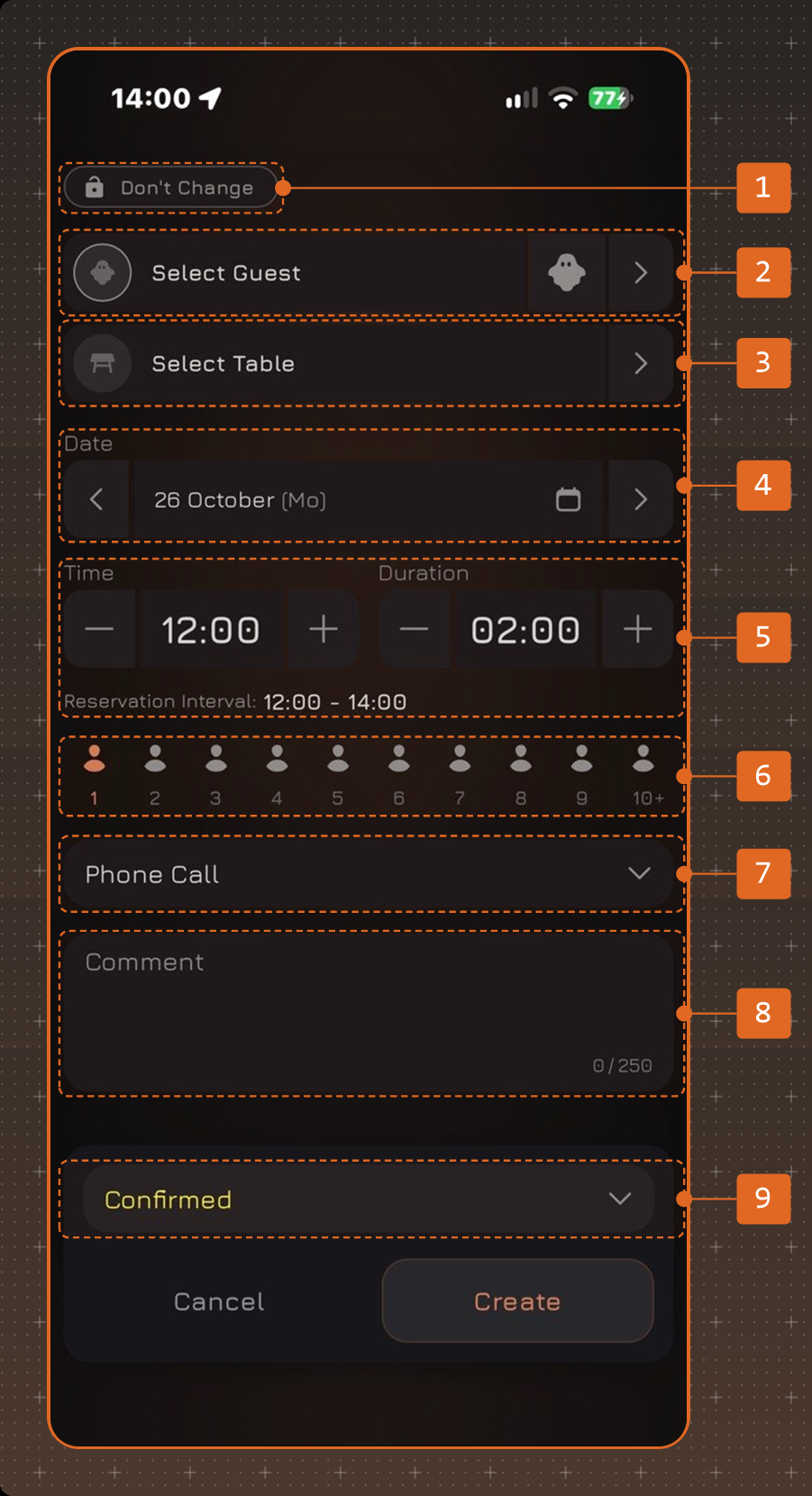
Form Fields
- Don't Change - prevents changing the table and the guest in the reservation. All other fields can be changed.
- Select Guest - search for a guest or create a new one. If no specific guest is needed, tap the ghost icon button on the right - the reservation will show Walk-in Guest without a name and phone number.
- Select Table - one or several tables. A reservation can be saved without a table, and the table can be selected later.
- Date - use the arrows to go to the previous or next day, or select a date with the calendar icon.
- Time and Duration - changed with the - and + buttons in 15-minute steps. Reservation Interval below shows the start and end time of the reservation.
- Number of guests - up to 10 guests are selected by tapping the icon; for a larger party tap 10+ and enter the number manually.
- Reservation source
- Comment
- Status - Confirmed by default.
If reservation tags are used in the establishment, the form also has a field for reservation tags.
To save the reservation, tap Create.