Requests
How to work with reservation requests in the CosmosResto Reservations app on the phone.
To open requests, tap Menu at the top of the screen and select requests.
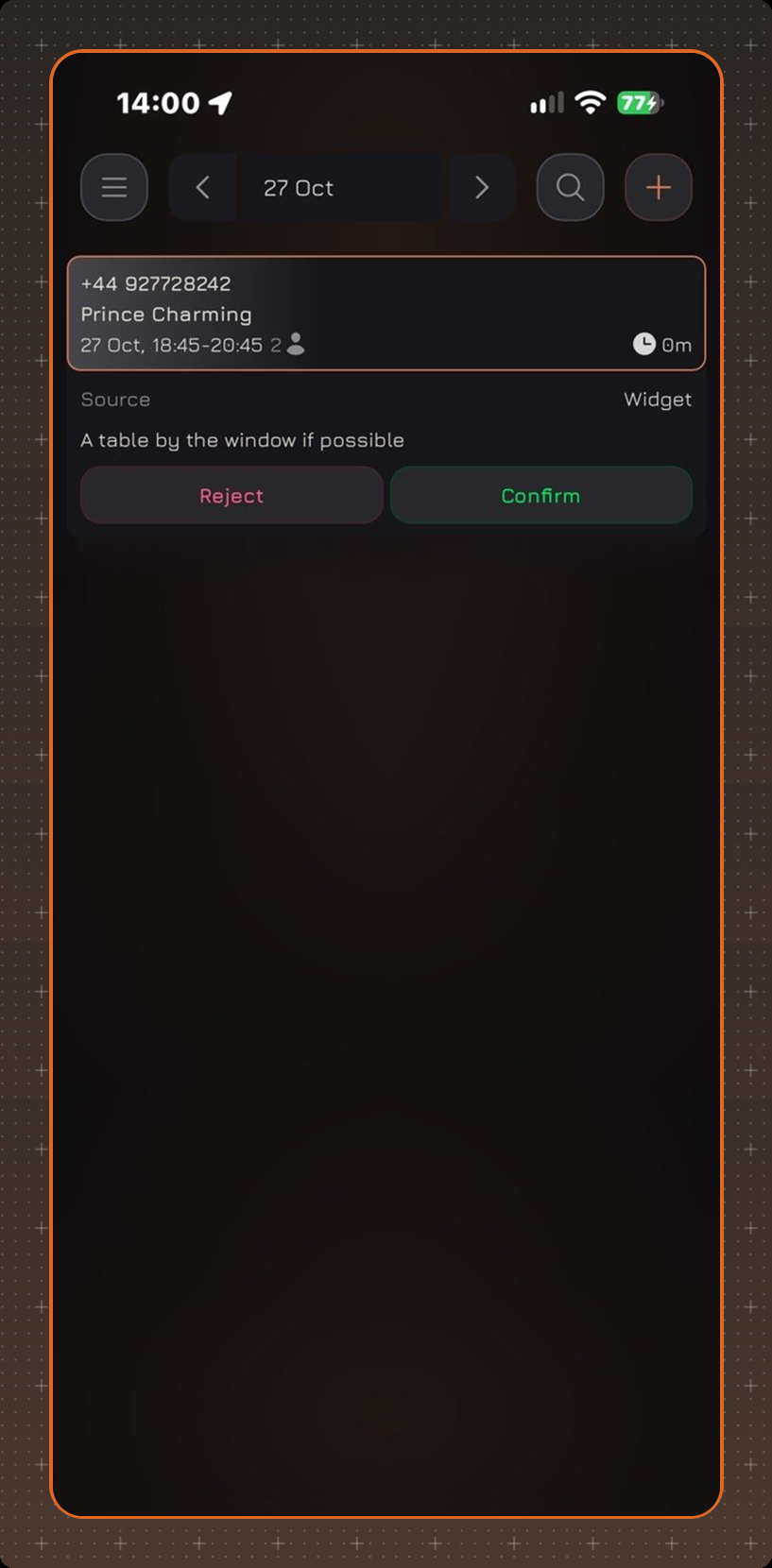
A request card shows the guest's phone number and name, the date and time for which the guest wants to book a table, and the number of guests. The time next to the clock shows how long the request has been waiting, for example 0m.
If the guest is already in the database, the request card has a button with a guest icon. It opens the guest info - see the Reservation View article.
To process a request, tap it. The card expands and shows the request Source, the guest's comment and the Reject and Confirm buttons.
Confirming a Request
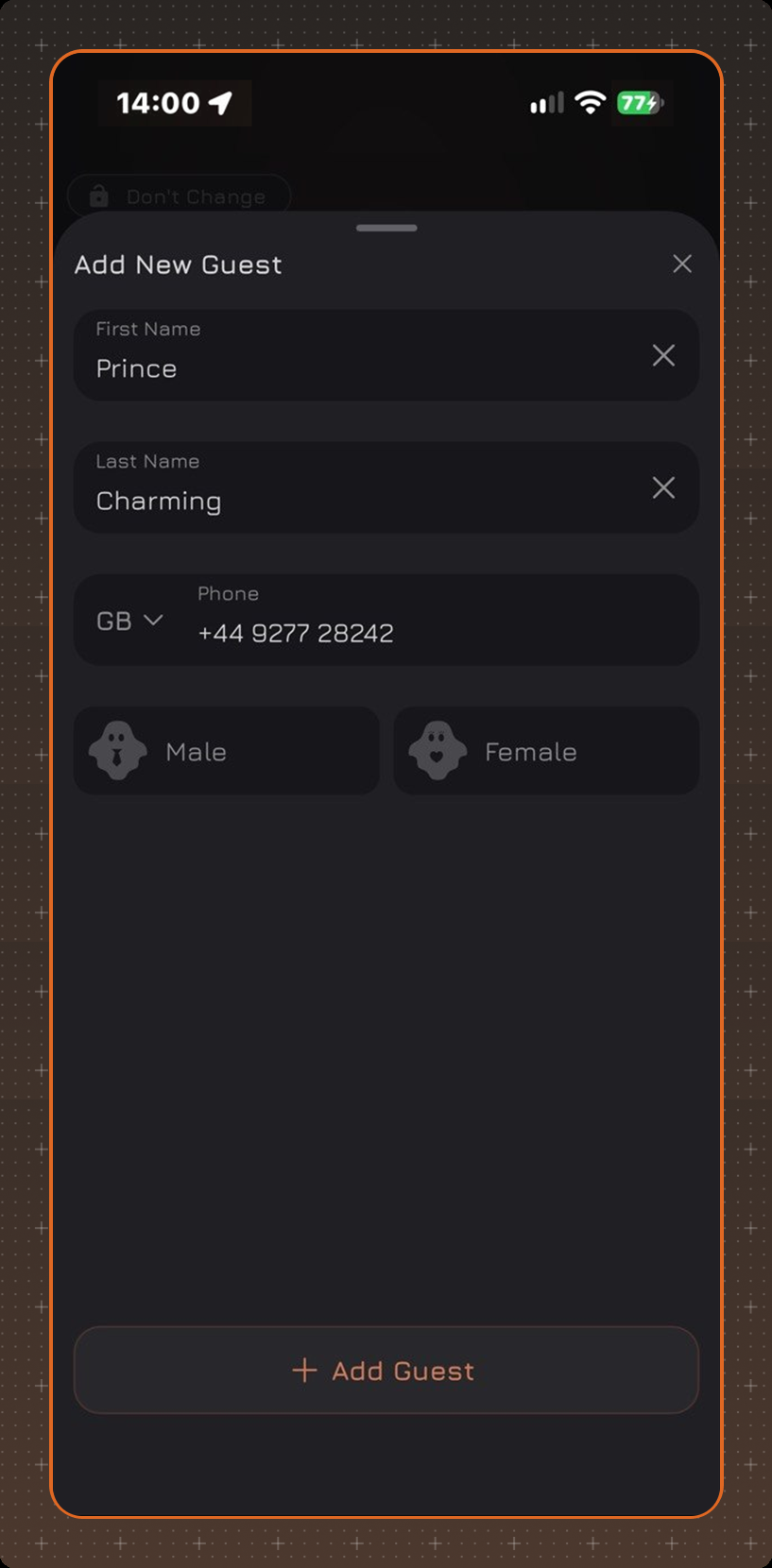
Tap Confirm. If the guest is not in the database yet, the Add New Guest window opens: the first name, last name and phone number are taken from the request. Select Male or Female and tap Add Guest.
If the guest is already in the database, this step is skipped.
Then the reservation form opens, filled in with the request data: guest, date, time, number of guests and source. If the guest is already in the database, the guest's tags are shown under the name. Select a table, change other fields if needed and tap Create. The Send SMS switch at the bottom of the form is on by default.
Rejecting a Request
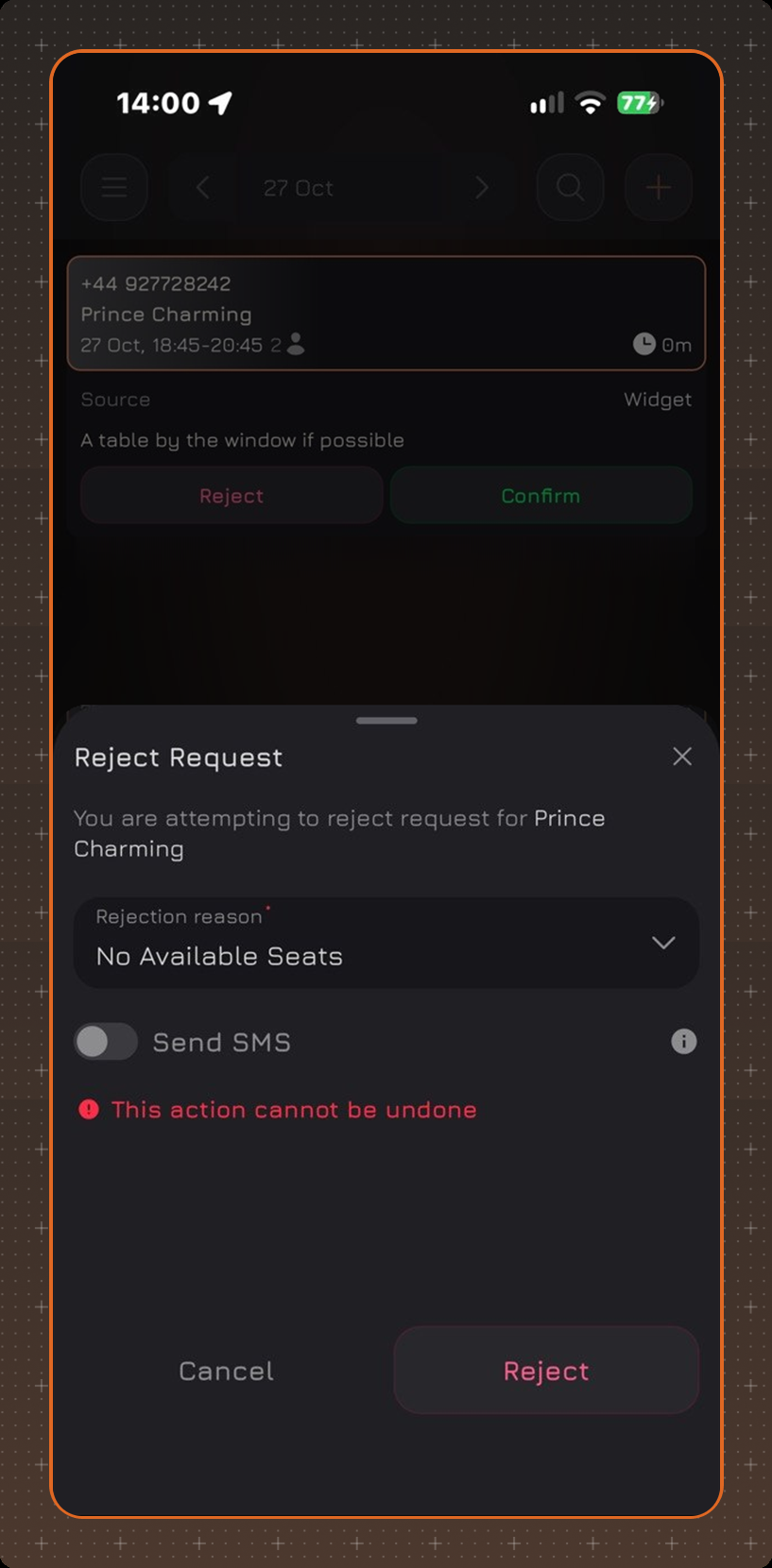
Tap Reject. In the Reject Request window, select the Rejection reason - the field is required. For the guest to receive an SMS about the rejection, turn on Send SMS; the switch is off by default. Tap Reject.