

Floor Plan
The floor plan in the CosmosResto Reservations app on the phone.
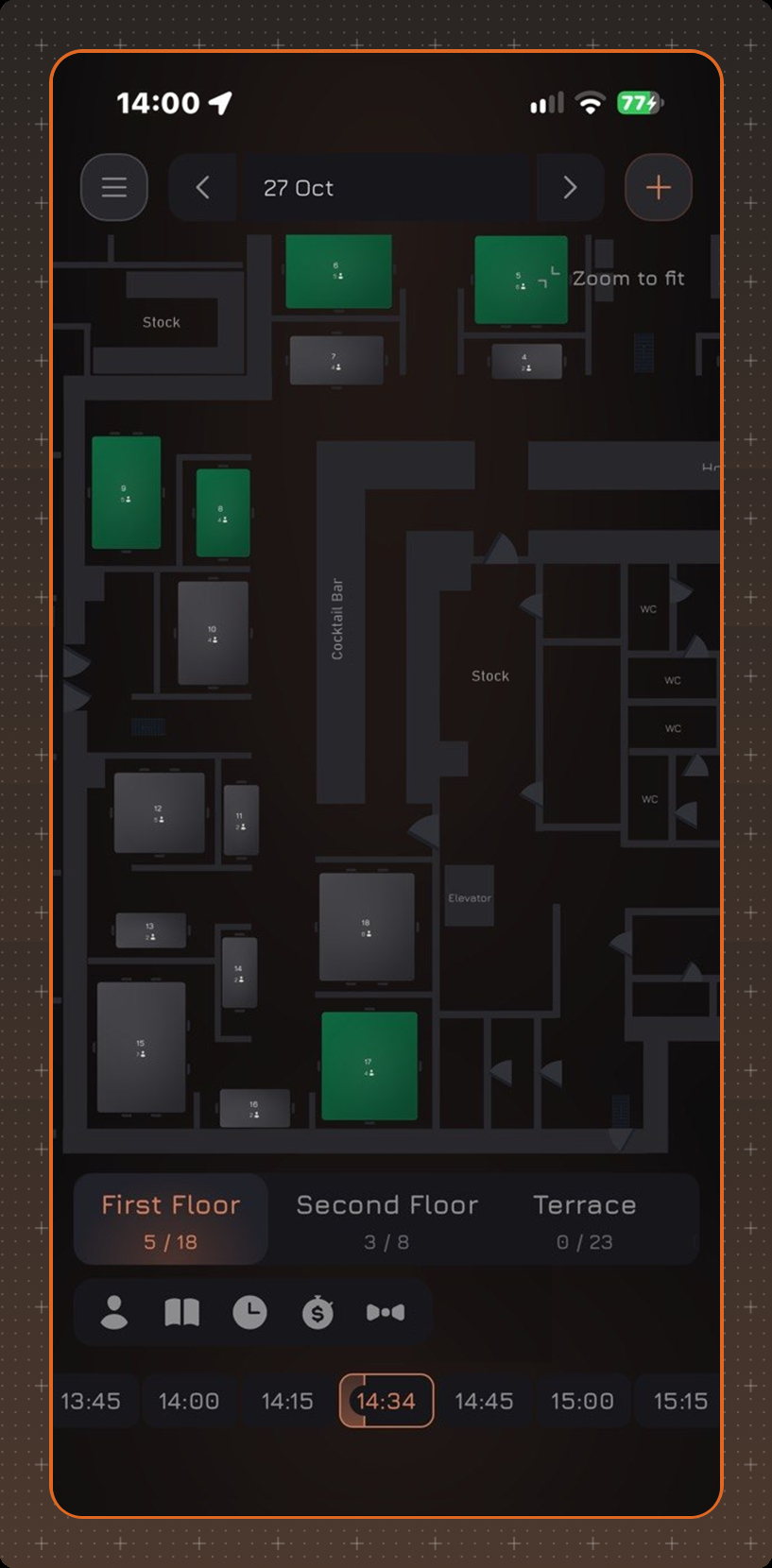
To open the floor plan, tap Menu at the top of the screen and select the floor plan. The plan shows the tables of the floor and their state for the selected date and time.
Screen Elements
- Date - use the arrows to go to the previous or next day.
- Zoom to fit - fits the floor plan to the screen. The plan can be zoomed and moved with your fingers.
- Floor - the floor name and the number of occupied tables out of all tables, for example First Floor 5 / 18. If there are several floors, they are shown next to each other, each with its own number of occupied tables.
- Time scale at the bottom of the screen - time selection in 15-minute steps. The current time is highlighted with a frame. The state of the tables on the plan depends on the selected time.
Table Colors
The table color depends on the reservation status at the selected time:
- Yellow - status Confirmed;
- Orange - status Not Confirmed;
- Green - status Started;
- Pink - status Not Confirmed, if the guest is late;
- Light blue - status Confirmed, if the guest is late.
A grey table is free.
Display Settings
The buttons above the time scale select which info is shown in the label next to a table:
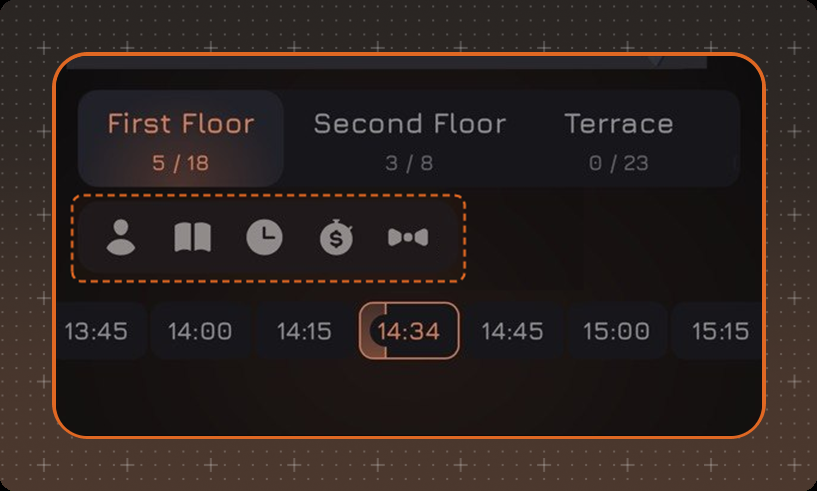
- Guest - first and last name of the guest of the current reservation.
- Reservations - up to three reservations: the current one and the next two, or the next three.
- Time - time until the end of the current reservation, until the start of the next one, or how late the guest is.
- Money - the check amount of the current reservation.
- Waiter - first and last name of the waiter from the current reservation's check.
If there is no data for the selected mode, the label next to the table is not shown.
Reservation for a Table
Tap a table on the plan - a window with the list of this table's reservations opens. To create a reservation for this table, tap + Create Reservation. The reservation form opens and is filled in the same way as when creating a reservation from the list - see the Creating a Reservation article.