

Online Reservation Schedule
In this section you will learn how to set the days and time intervals available to guests for online reservations at a location.
The online reservation schedule defines on which days of the week and at what hours guests can make a reservation online. The schedule is set separately for each location.
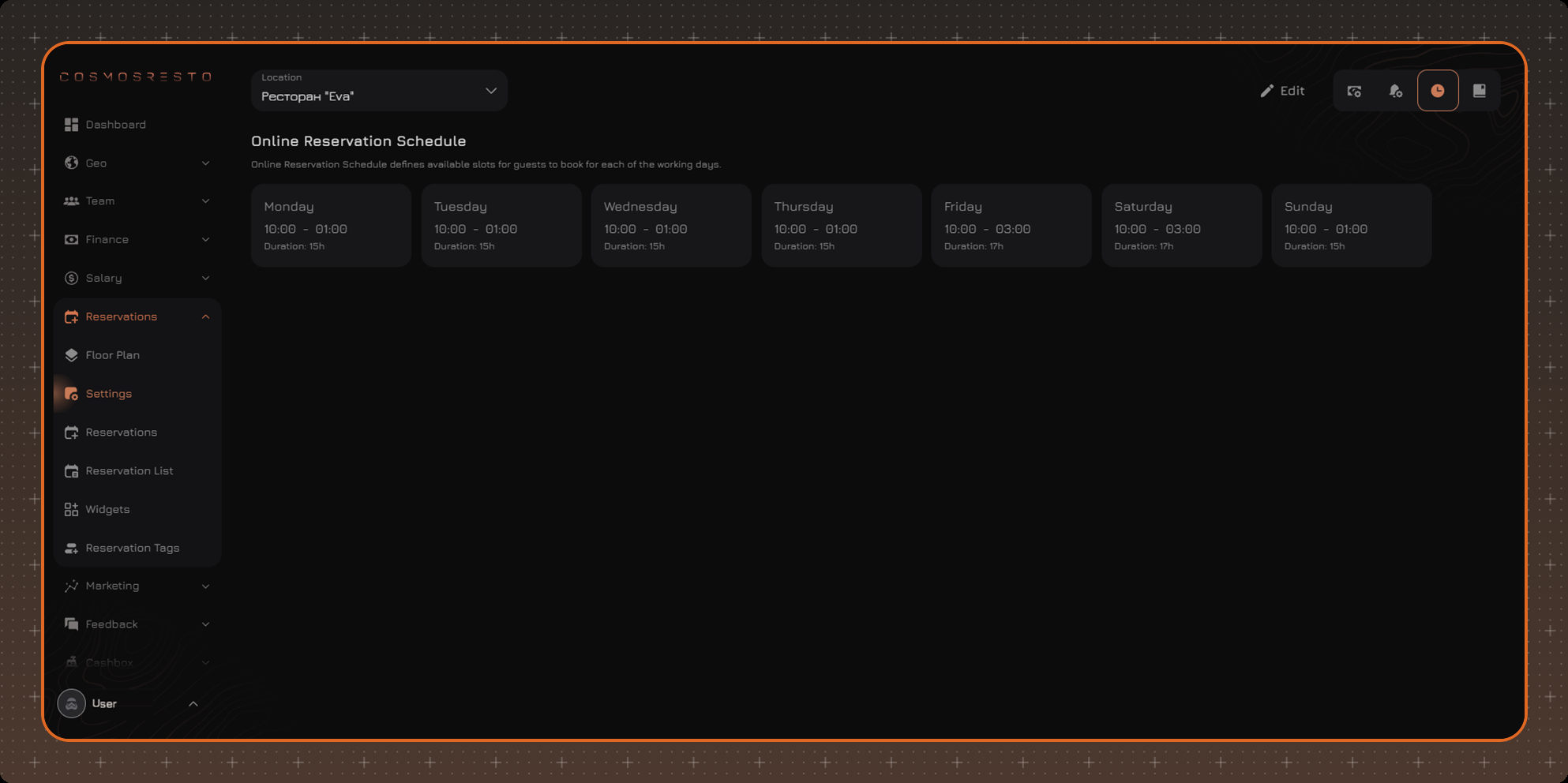
To open the schedule, go to Reservations → Settings, select the location in the Location field and open the tab with the clock icon in the upper right corner.
Viewing the Schedule
The tab shows the Online Reservation Schedule block - cards for all days of the week. The card of an open day shows the start and end time of the interval and its Duration. A closed day shows Closed.
Editing the Schedule
After clicking Edit in the upper right corner, the schedule opens for editing:
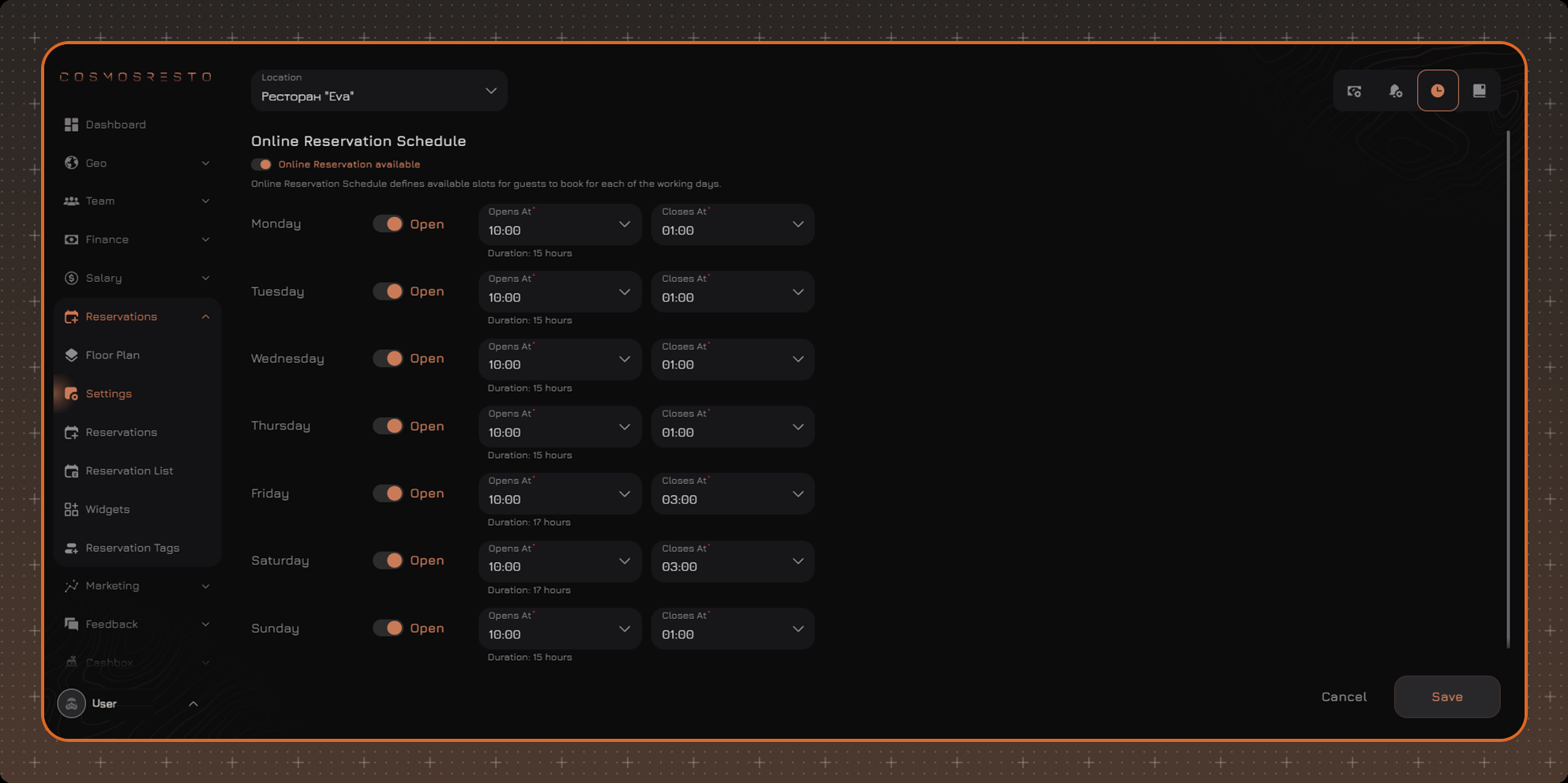
- Online Reservation available - the general online reservation switch for the location. If it is turned off, online reservations are unavailable at the location and the schedule by day is hidden.
- Open - the switch for each day. If it is off, the day is closed for online reservations and its time fields are not shown.
- Opens At and Closes At - the start and end of the interval when online reservations are available. Both fields are required for an open day. The interval duration is shown below the fields.
To apply the changes, click Save.
Schedule in the Widget
The schedule applies to all reservation widgets of the location. In the widget form, the guest can choose a visit start time only within the interval of the selected day.
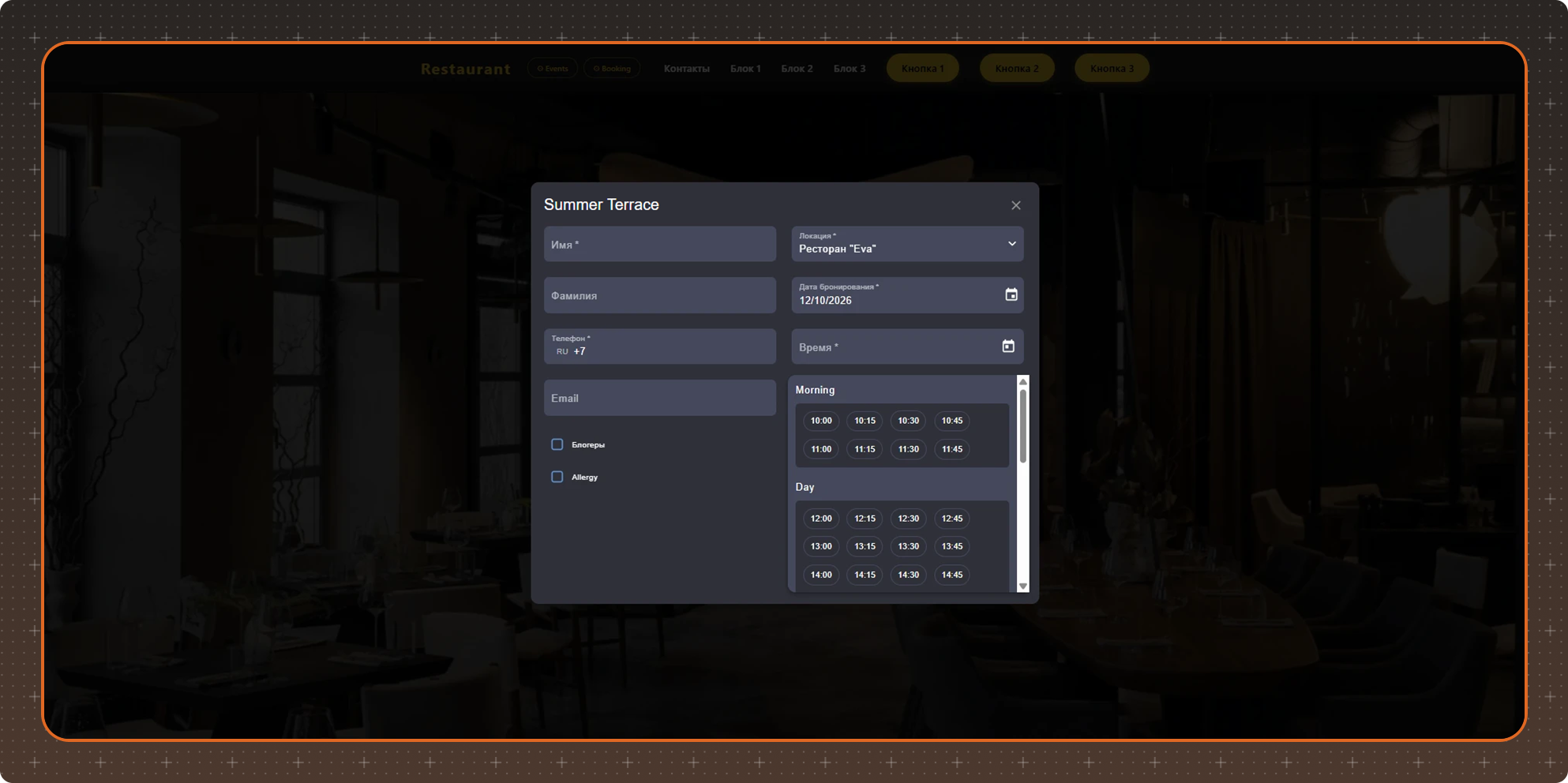
- A closed day has no interval, so the widget does not offer any time for that day. If all days are closed, online reservations are unavailable.
- The latest available start time is the closing time minus the visit duration. For example, with an interval of 10:00 - 22:00 and a 1-hour visit, the latest time is 21:00.