Reservation List
In this section you will learn how to work with the reservation list: search and filter reservations, configure the table and export data.
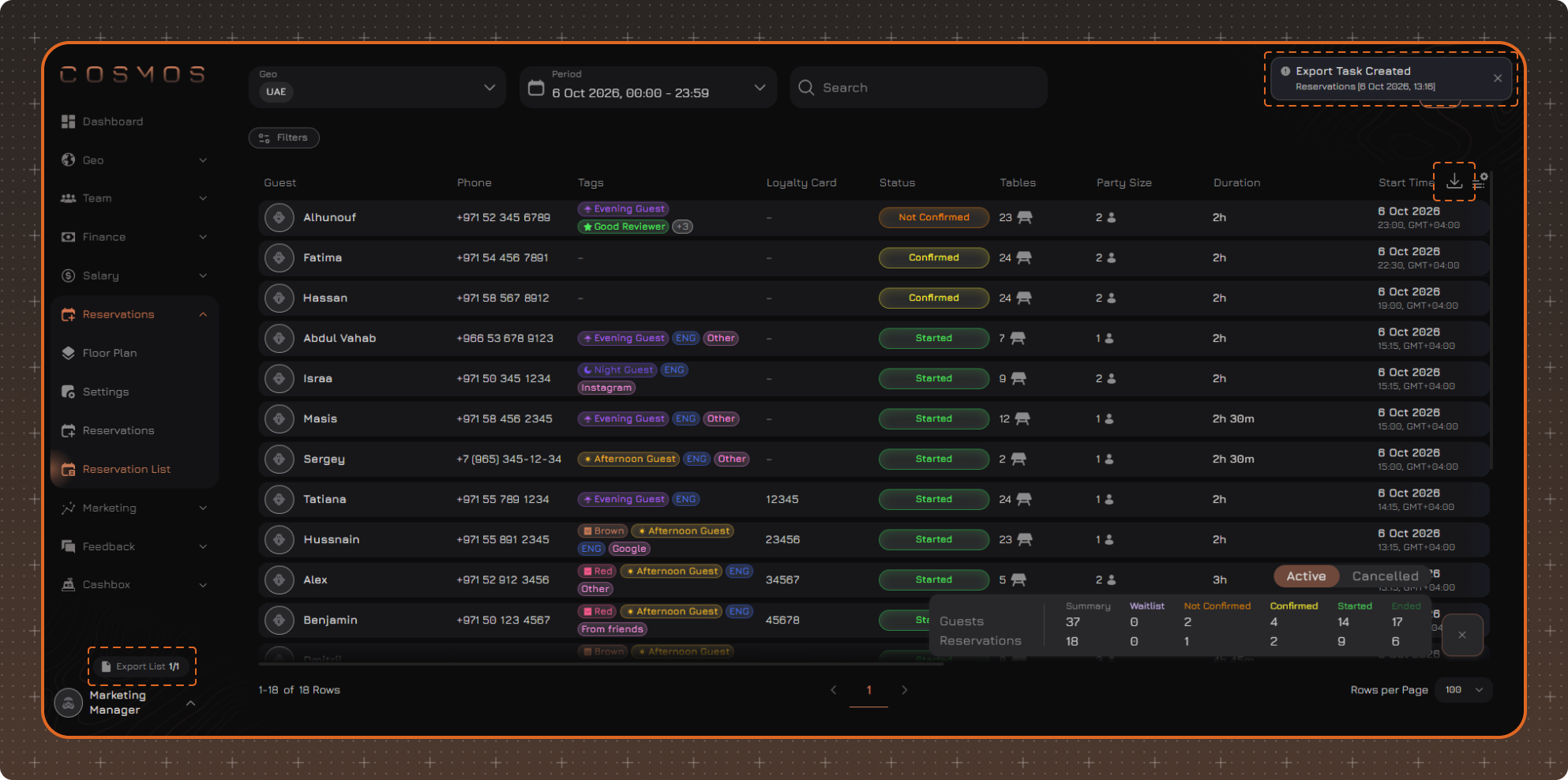
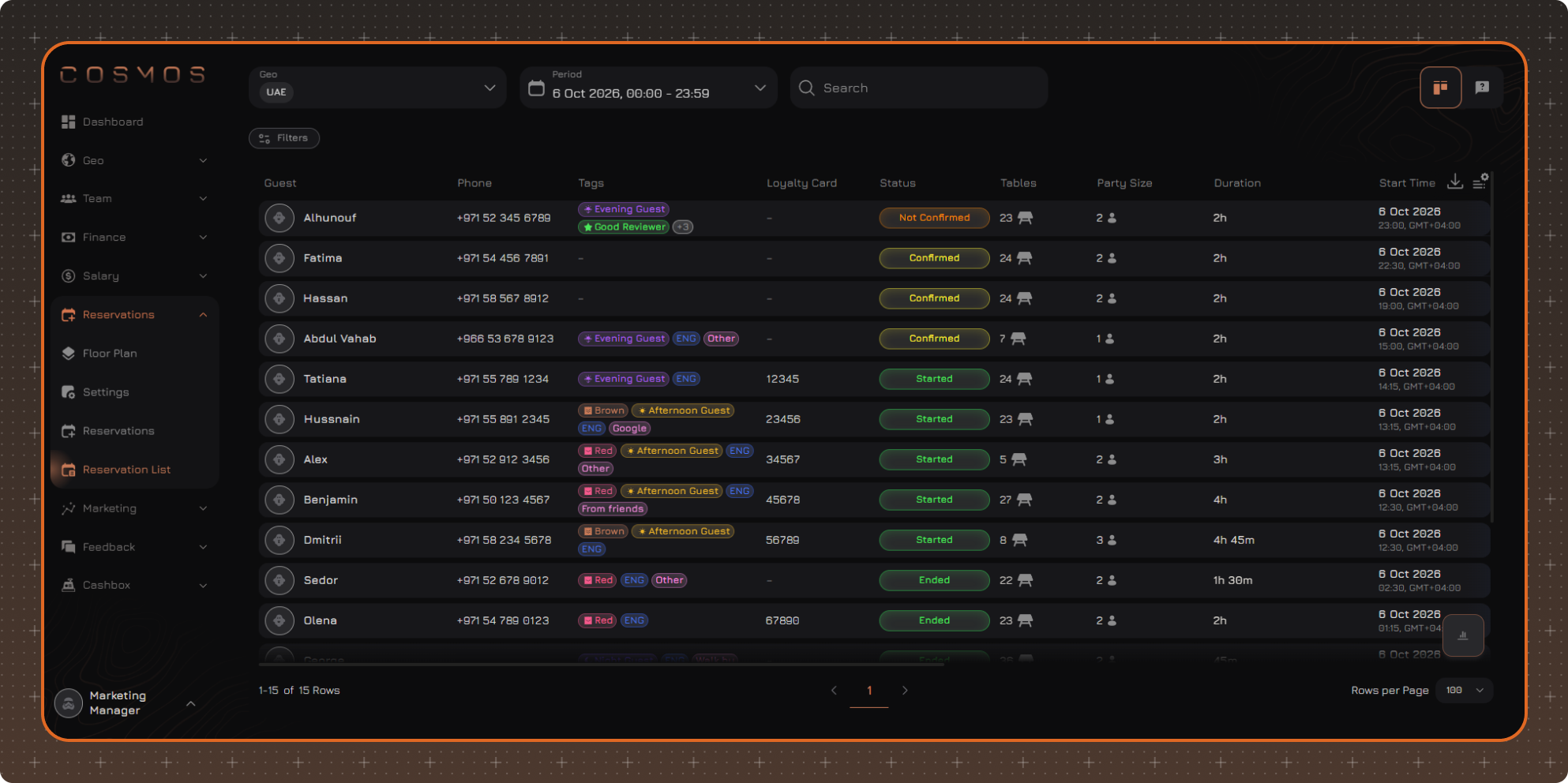
The Reservations → Reservation List section shows reservations of the selected locations for the selected period as a table. Here you can find a reservation, filter the list, configure the displayed columns and export data.
Page Elements
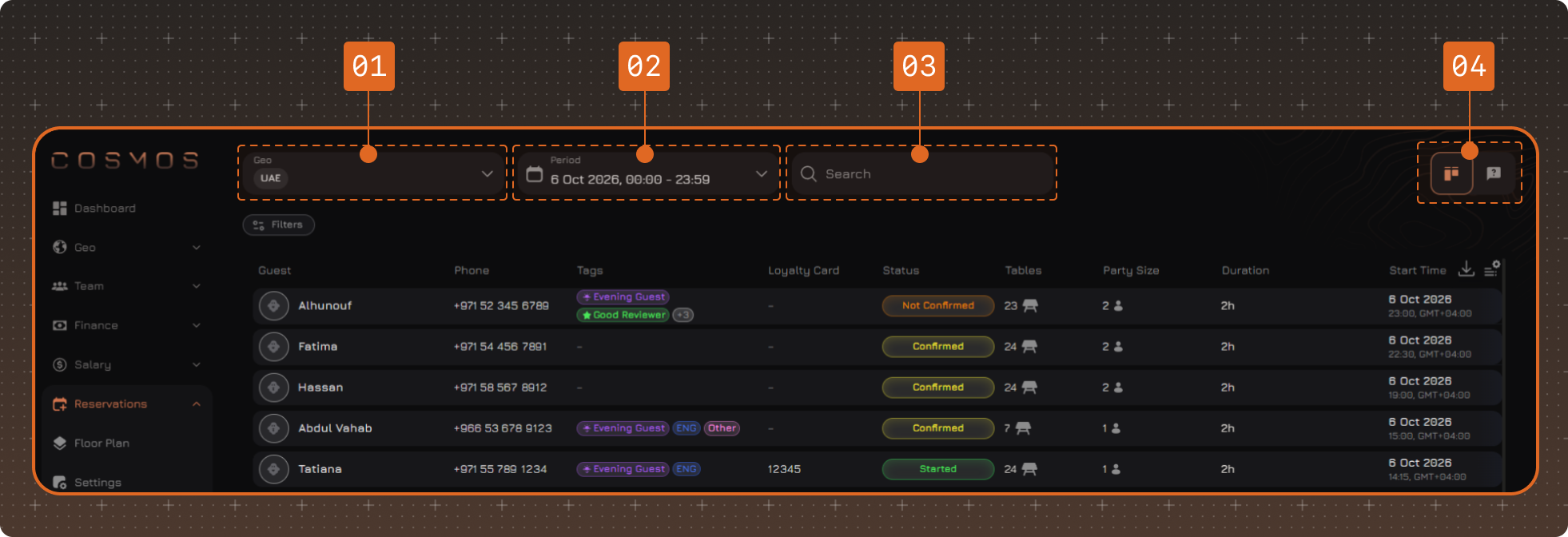
- Geo — selection of locations whose reservations are displayed in the table.
- Period — the date and time range for which reservations are displayed.
- Search
- Switch — the left button opens the reservation list, the right one opens the request list.
Statistics
Reservation statistics for the selected period are displayed in the lower-right corner of the table. They have two tabs: Active and Cancelled.
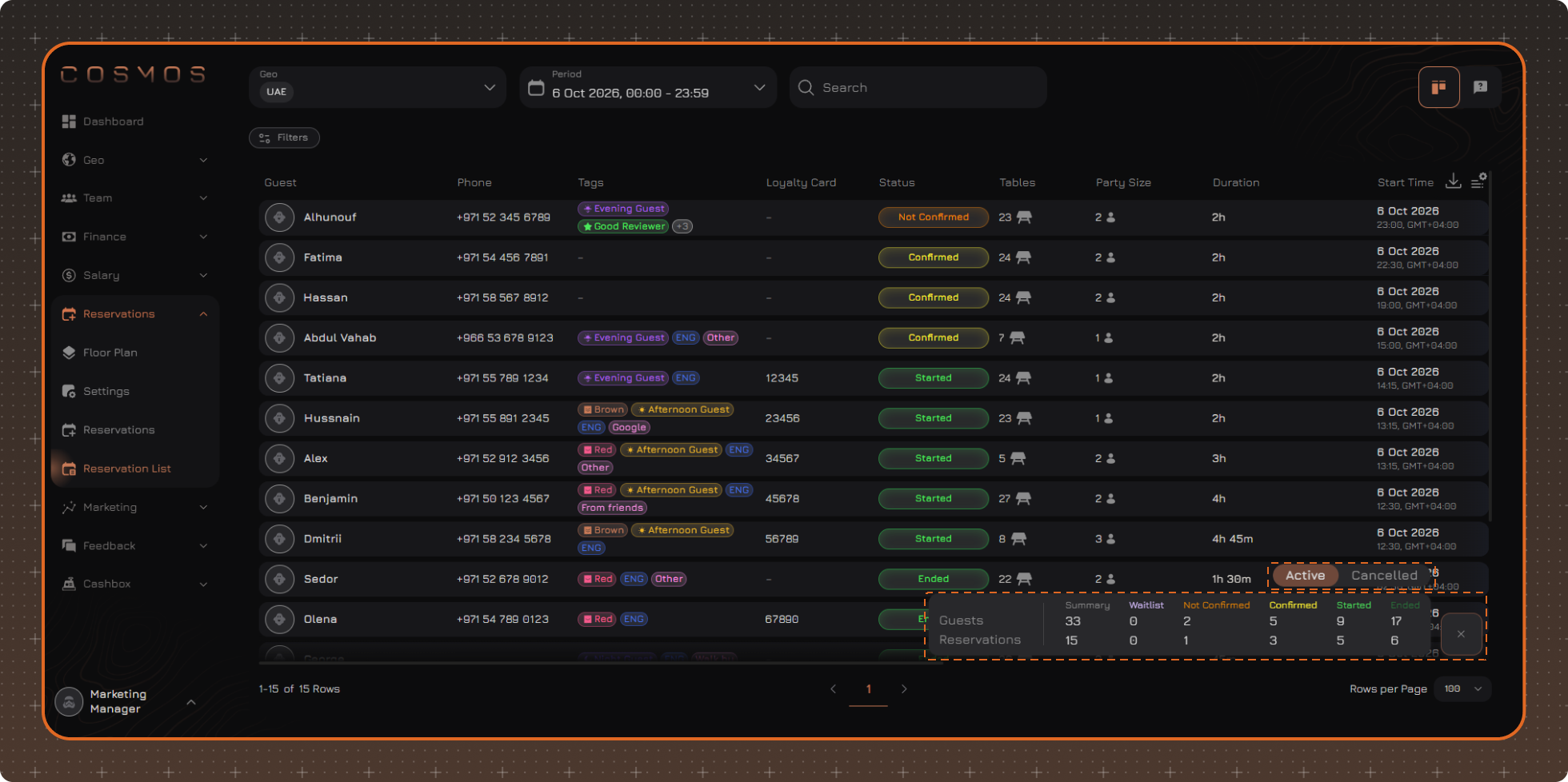
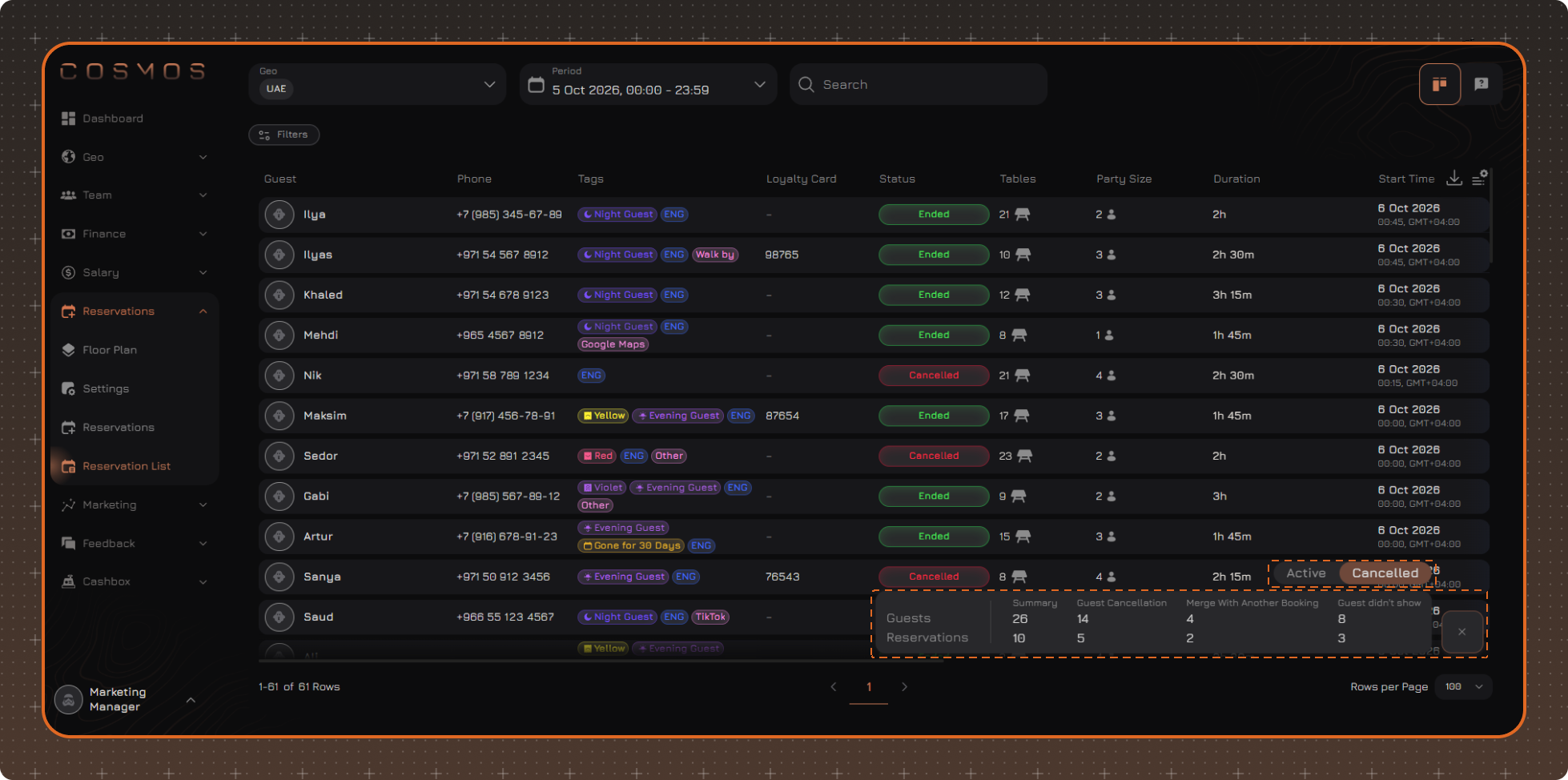
On the Active tab, the total number and the number in each status are displayed for guests and reservations: Waitlist, Not Confirmed, Confirmed, Started, Ended.
On the Cancelled tab, the data is grouped by cancellation reason. Only the reasons that have cancelled reservations are displayed. The Summary column shows the total number of cancelled reservations.
The Guests row shows the number of guests in the reservations, while the Reservations row shows the number of reservations.
Table Settings
To change the displayed columns, click the table settings button in the upper-right corner.
In the panel that opens, you can:
✔ Select the columns to display
✔ Change the column order — drag a column in the list by the icon to the left of its name
✔ Pin the required columns — click the pin icon to the right of the column name. Pinned columns move to the beginning of the table
✔ Restore the default settings using Reset to Default
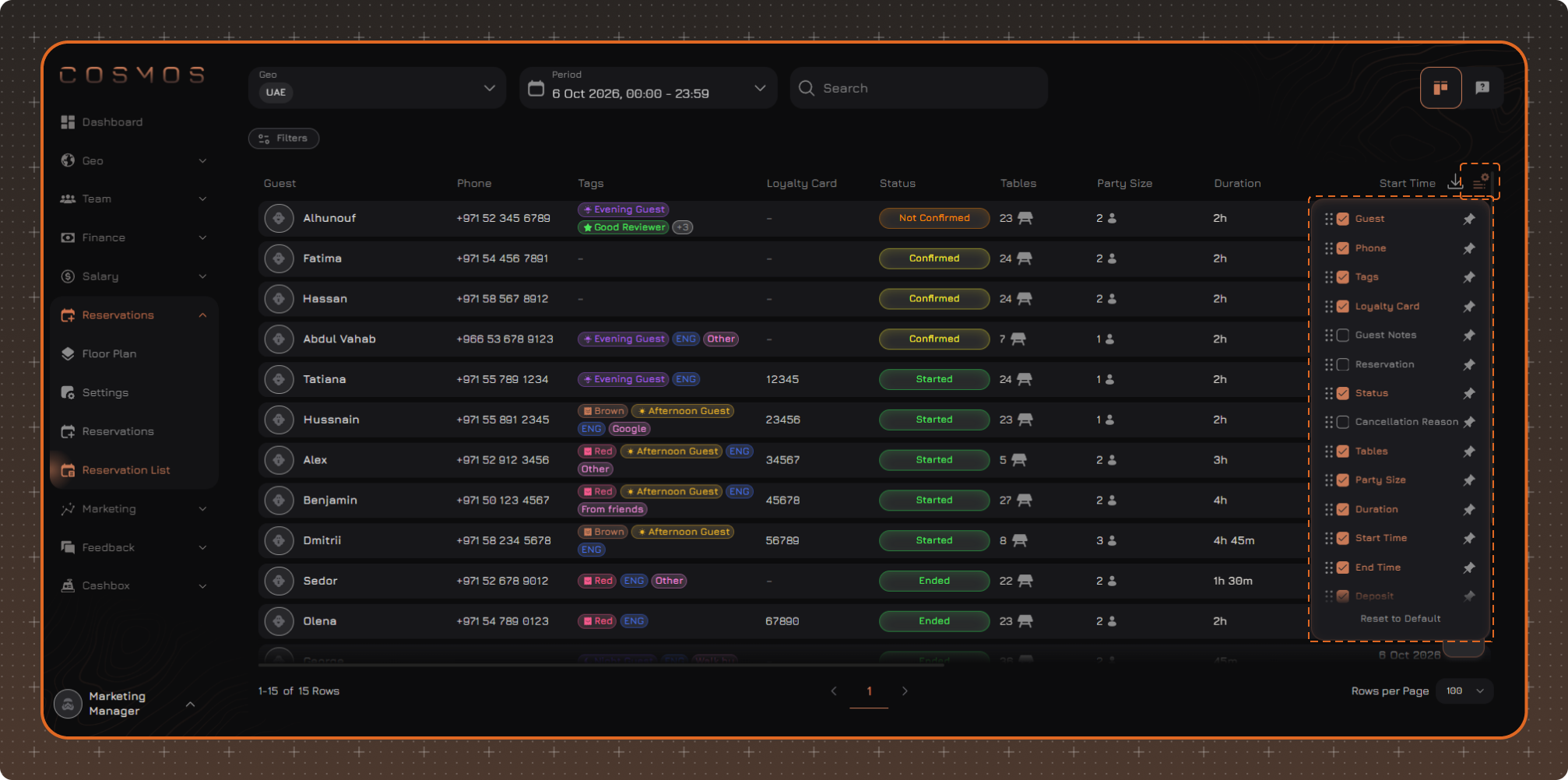
By default, the table displays the following columns:
- Guest
- Phone
- Tags — guest tags
- Loyalty Card
- Status
- Tables
- Party Size
- Duration
- Start Time
- End Time
- Deposit — the deposit amount for the reservation
- Reservation Tags — tags assigned to the reservation. For more information, read the article Reservation Tags
- Reservation Notes
- Served By — the employee assigned to the reservation
The following columns can be enabled additionally. When enabled, they appear in the table according to the column order in the settings:
- Guest Notes
- Reservation
- Cancellation Reason — filled in only for cancelled reservations
- Total — the total amount of the orders linked to the reservation
- Reservation Source
- Updated At
- Updated By
- Created At
- Created By
Filters
Click Filters, select a field in the list on the left and check the required values on the right. To apply the conditions, click Apply.
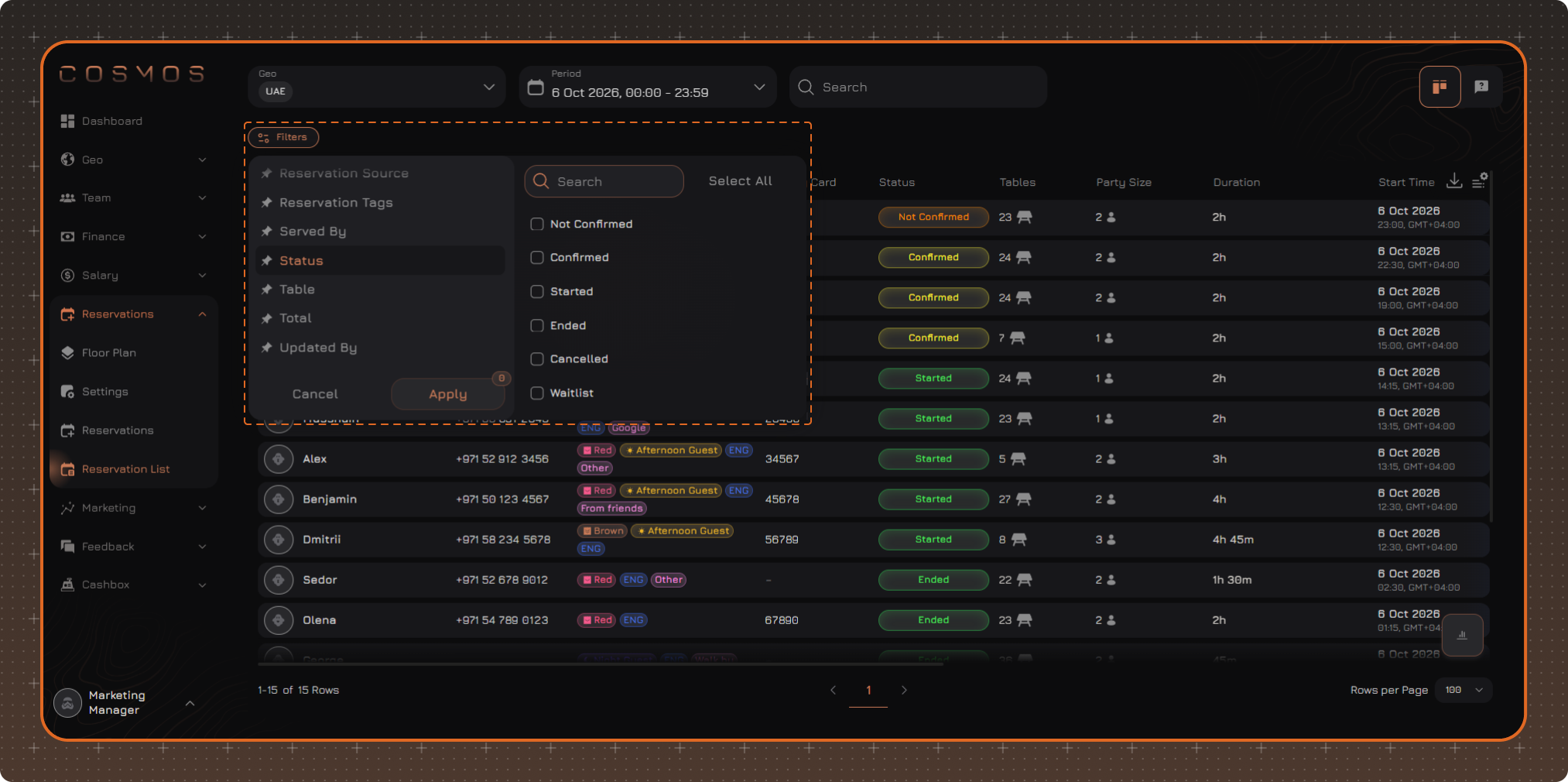
Applied filters are displayed next to the Filters button. To remove a filter, click × next to its name.
Export
To export reservations, click the download icon in the upper-right corner of the table, next to the table settings button.
After that, the system creates an export task. When the file is ready, the Export Successful notification with the Download button appears. The file is also available in the Export section at the bottom of the side menu. The file can be downloaded within 24 hours.
The file includes all reservations that match the selected geo, period and filters, from all pages of the table. Only the columns enabled in the table settings are exported. The file is exported in CSV format.
Export is available only in the reservation list. There is no export button in the request list.