General Information
A reservation widget is a form on the venue website where guests submit reservation requests themselves. Requests from the widget arrive in the system; how to process them is described in Reservation Requests.
To work with widgets, open Reservations → Widgets. Here you can create a widget, configure its appearance and form fields, check the result in the preview and get the code for the website.
Widget List
The table shows all created widgets. By default, the list is sorted by creation date: newest widgets first.
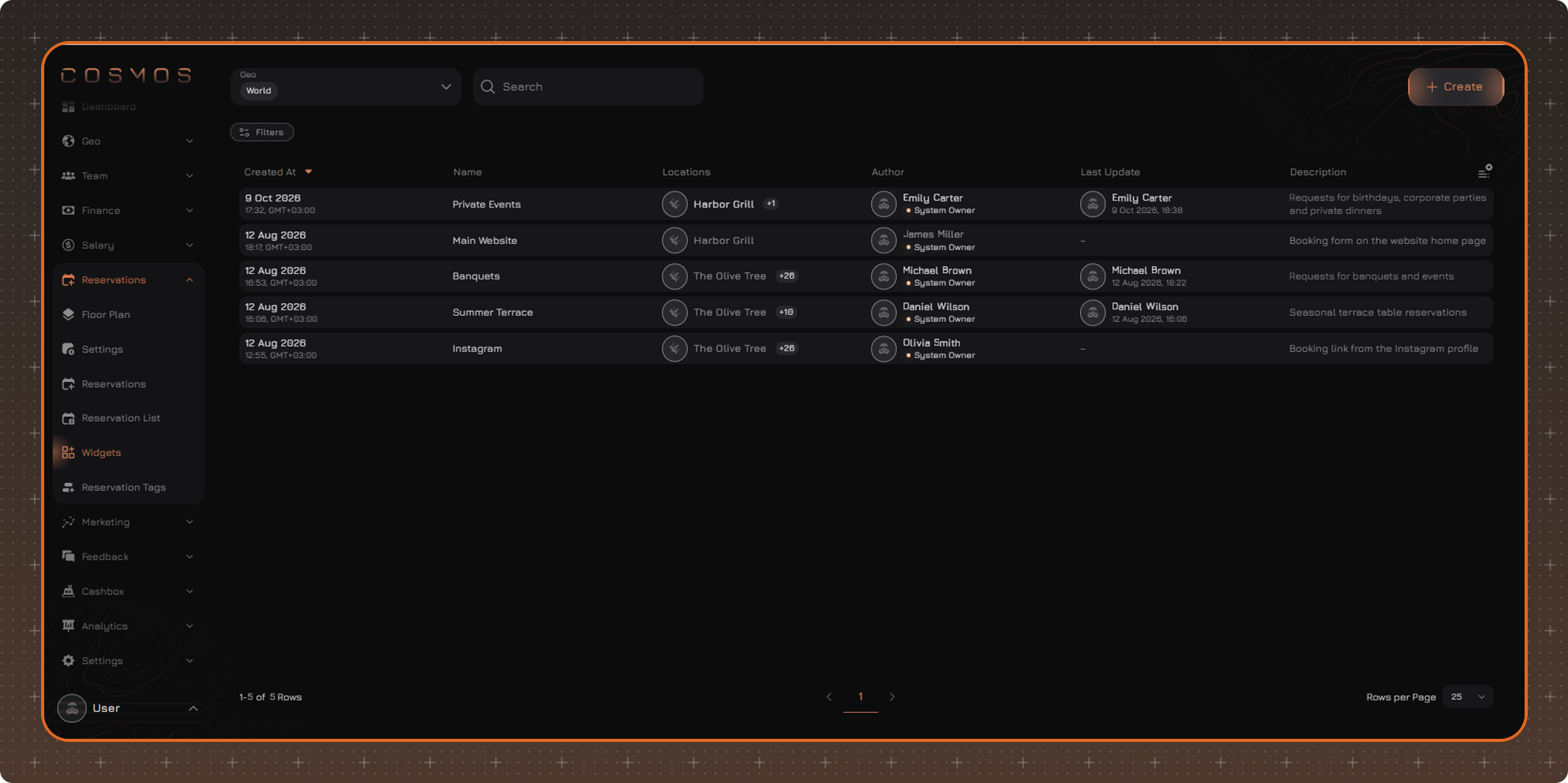
- Geo — selects the locations whose widgets are shown in the list.
- Search — search for a widget by name.
- Filters — filter widgets by conditions.
- Create — create a new widget.
To open a widget for viewing and editing, click its row.
Table Settings
To change the set of displayed columns, click the table settings button in the upper right corner.
In the panel that opens, you can:
✔ Select the columns to display
✔ Change the column order — drag a column in the list by the icon to the left of its name
✔ Pin the required columns — click the pin icon to the right of the column name. Pinned columns move to the beginning of the table
✔ Restore the default settings using Reset to Default
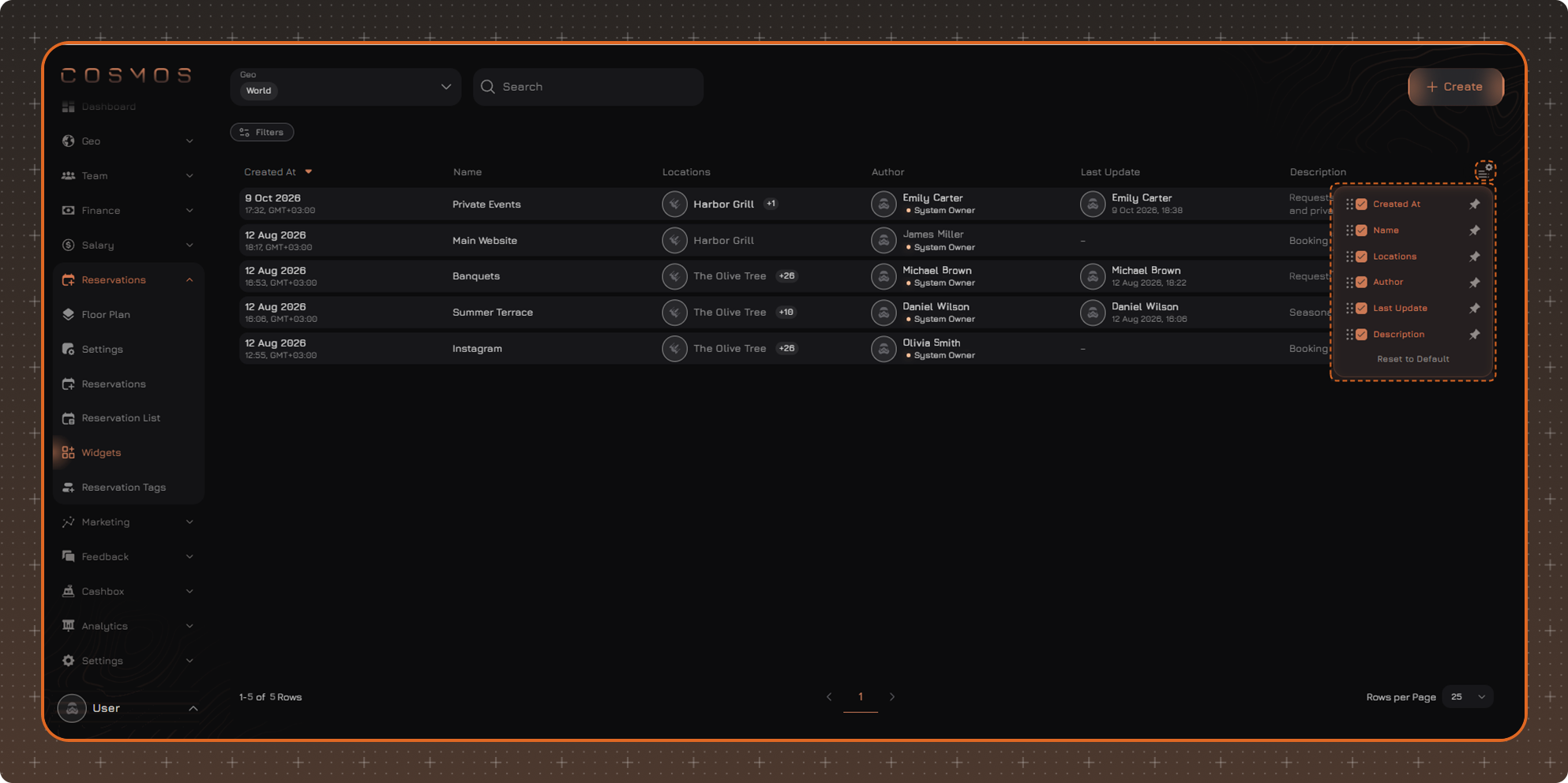
By default, the table shows the following columns:
- Created At
- Name
- Locations
- Author
- Last Update
- Description
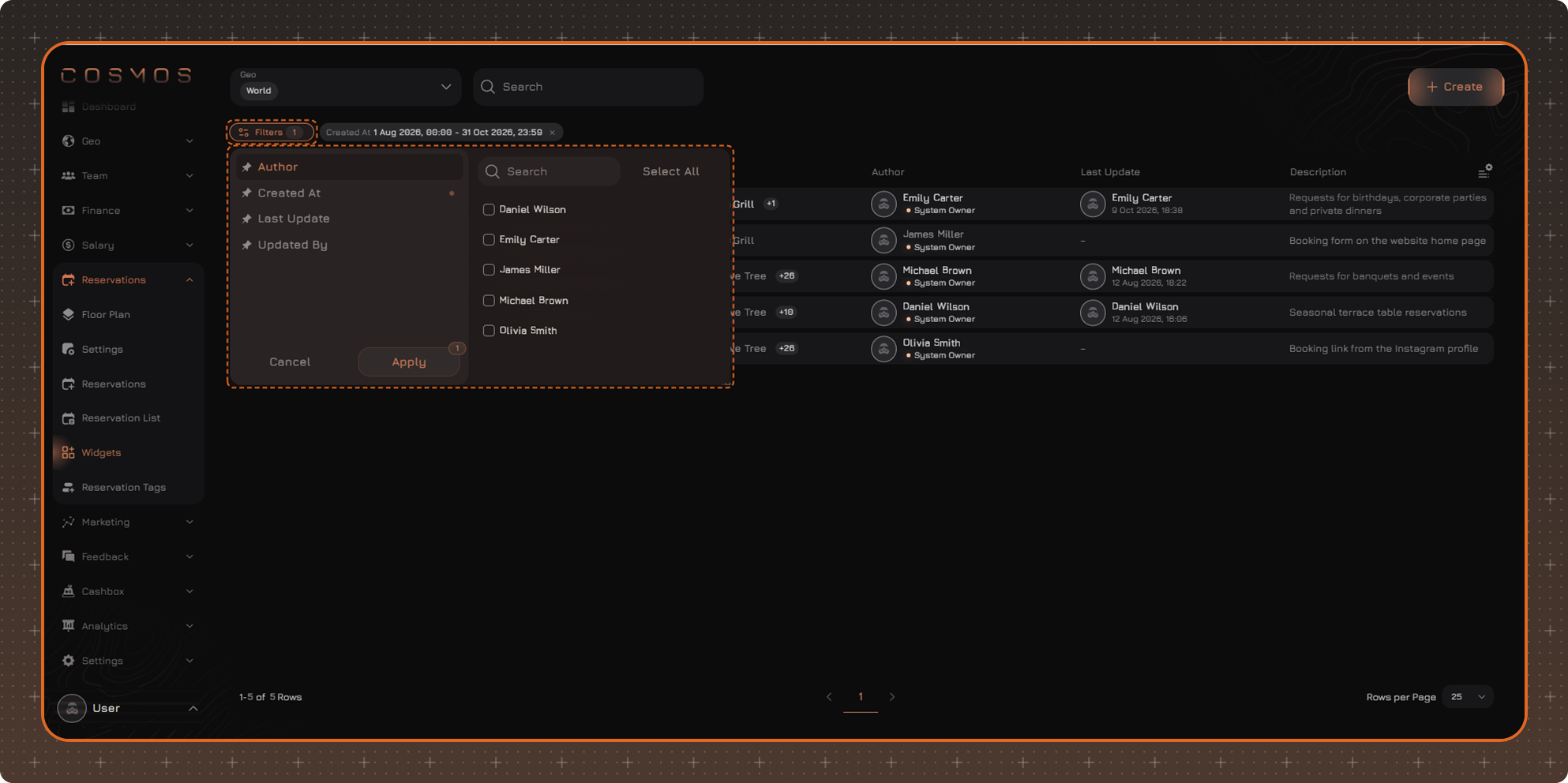
Filters
Applied filters are displayed above the table next to the Filters button.
Each field in the filter window has a pin icon — use it to pin the filter.
The Clear Filters button removes unpinned filters and resets the values in pinned filters.