

Create Metric
How to add a metric to the Master Chart: categories, metrics, display settings, and filters.
To add a metric to the Master Chart:
1. Click Add Metric
2. Select the required metric parameters
3. Click Create
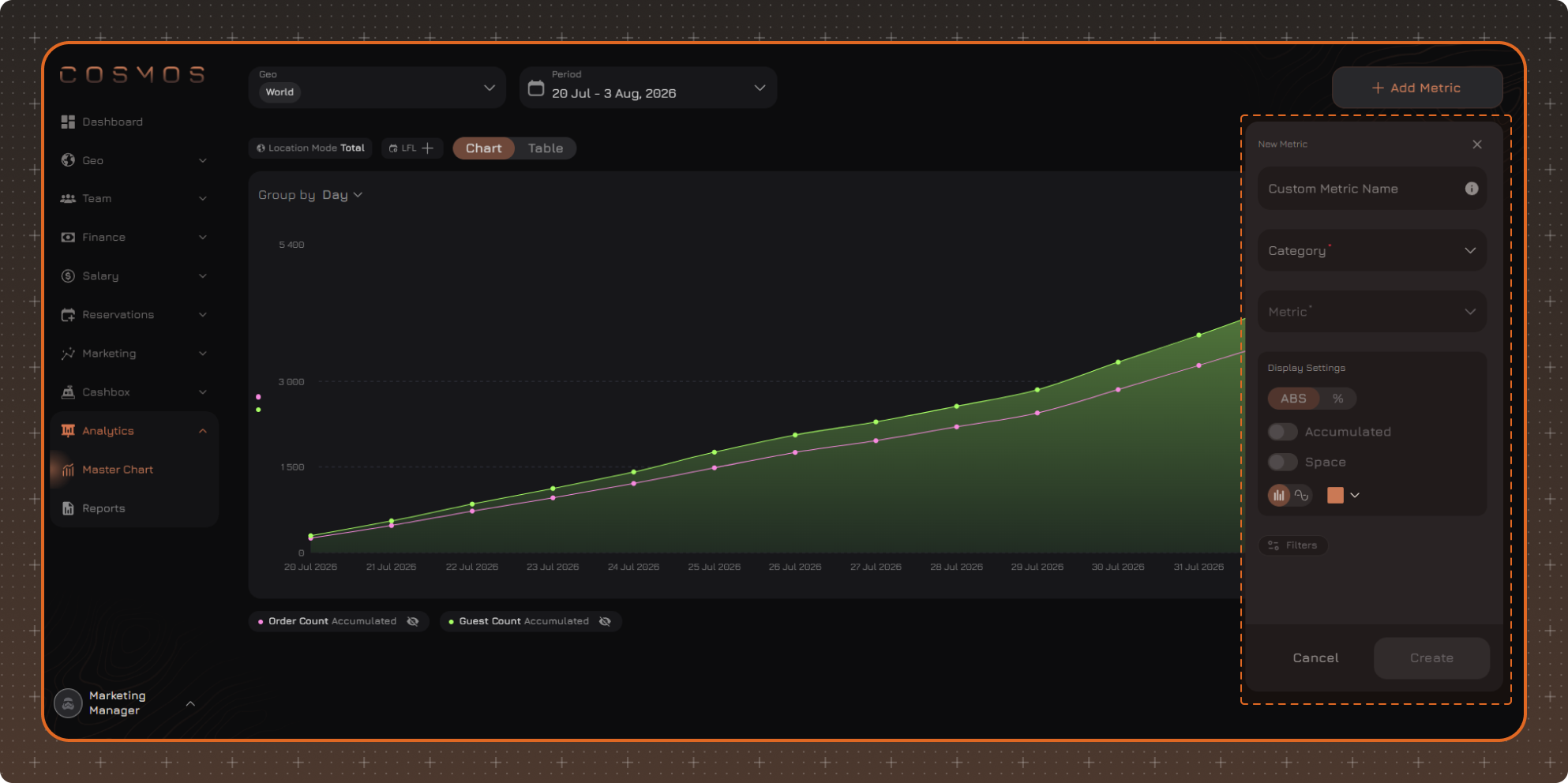
The metric appears on the chart and in the legend.
New Metric
1. Custom Metric Name
Optional field. The specified name is displayed on the chart instead of the system name. If a name is specified, the metric filters are not shown in the legend.
2. Category
The category determines which metrics and filters are available.
- Finance
- Sales
- Sales by Guests
- Guest Base
3. Metric
The set of available metrics depends on the selected category.
Finance
- Income
- Expenses
Sales
Revenue:
- Revenue Gross — sales amount before discounts
- Revenue Net — sales amount after discounts
Cost and profit:
- Profit Gross — the difference between revenue and cost of goods sold
- Cost of Goods Sold — calculated based on the dish composition from recipe cards and ingredient costs from iiko
Discounts:
- Discount Total
- Discount Loyalty
- Discount Bonuses — the amount of bonuses used. Bonuses are not included in Discount Total
Orders and guests:
- Order Count
- Guest Count — the total number of guests specified in orders. One order can be for several guests, so the metric value can exceed the order count
Average check:
- Avg Check Per Order
- Avg Check Per Guest
- Avg Check Per Order Per Hour — the ratio of revenue to the total duration of orders
- Avg Check Per Guest Per Hour — shows how much revenue, on average, falls on one guest for one hour of order duration
Sales by Guests
Metrics in this category are calculated based on sales data linked to guests.
Revenue:
- Revenue Net
- Avg Revenue per Unique Guest — the ratio of revenue to the number of unique guests
Discounts:
- Discount Total
- Discount Loyalty
- Discount Bonuses — the amount of bonuses used. Bonuses are not included in Discount Total
Orders and guests:
- Order Count
- Unique Guests — each identified guest is counted once regardless of the number of their orders. Each order without a linked guest is counted as a separate guest.
Average check:
- Avg Check Per Order
- Avg Check Per Order Per Hour — the ratio of revenue to the total duration of orders
Frequency and behavior:
- Avg Orders per Unique Guest — the ratio of the order count to the number of unique guests
- Avg Duration — the average duration of an order
Guest Base
- Guest Base — the total number of unique guests accumulated by a certain date. The base includes guests who have at least one order or reservation in the selected locations.
4. Segment
Available for the Sales by Guests and Guest Base categories.
By default, the metric is calculated for All Guests. To calculate it for a specific group of guests, select a custom segment.
You can use static and dynamic segments created in the Guest Segments section.
The metric is calculated using the current segment composition as of its last update, not the composition for the selected period. If the segment is deleted, the metric is calculated for All Guests.
5. Display Settings
The set of available display settings depends on the selected metric.
-
ABS / % — displays the metric as an absolute value or as a percentage. When % is selected, specify the value the percentage is calculated from. For example, for the Revenue Net metric you can select Of Revenue Gross.
-
Accumulated — values are summed up sequentially from the beginning of the selected period. "Accumulated" is added to the metric name in the legend.
-
Space — recalculates the metric value per Area (per m²) or per Seats. The area is taken from the location settings, and the number of seats from the floor plan. If several locations are selected, the metric value is calculated relative to their total area or total number of seats.
-
Chart Type — bar or line. The chart type is set separately for each metric, so both types can be used on the same chart.
-
Color — the color of the metric on the chart
Metric Filters
Filters allow you to include only part of the data in a metric, for example, revenue only for the evening or only for card payments.
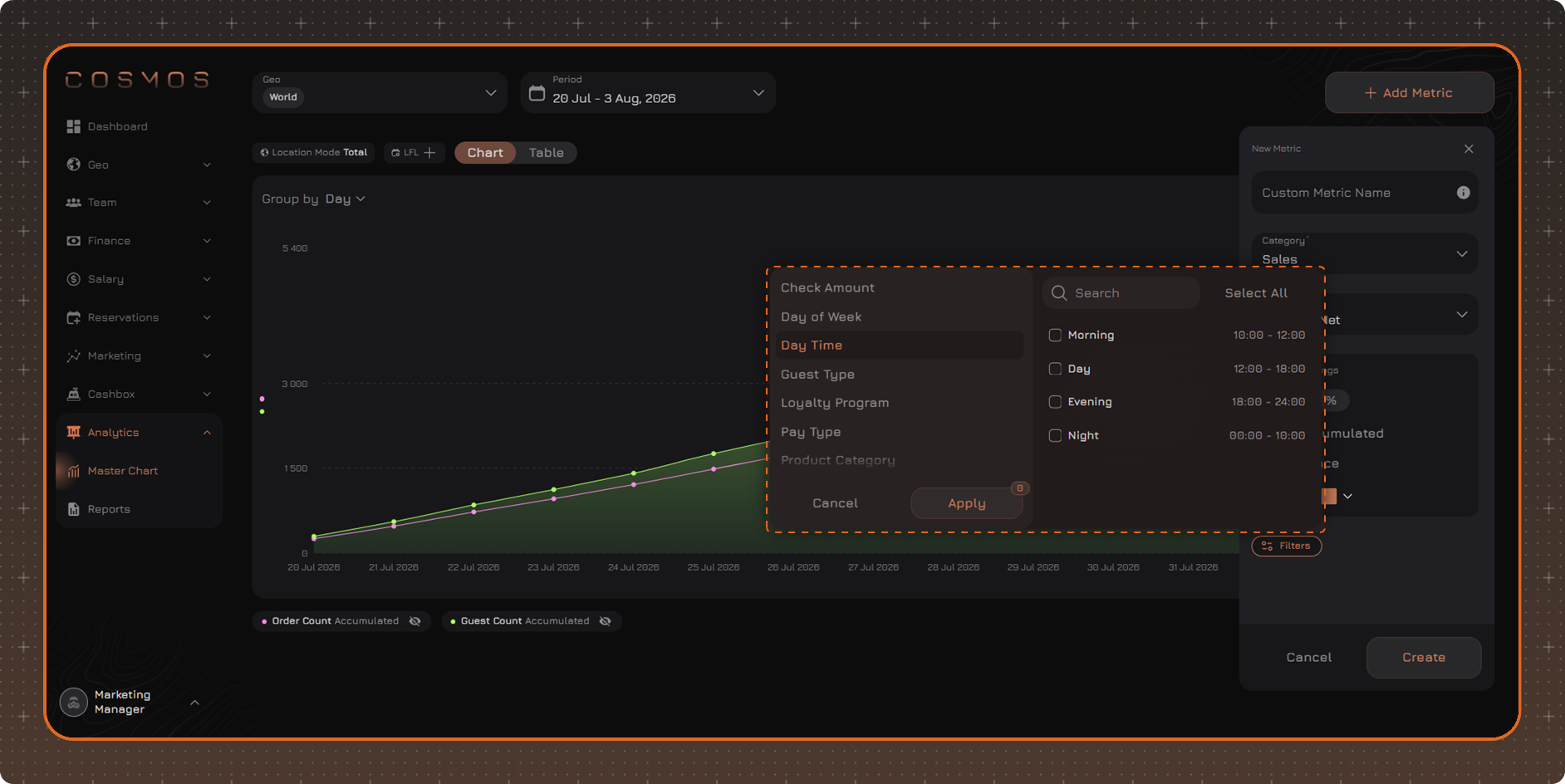
The set of available filters depends on the selected category and metric. Filters apply only to the metric being created and do not affect the other metrics on the Master Chart.
After selecting the values, click Apply.
Edit Metric
Click the metric name in the Master Chart legend to open its settings. Change the required parameters and click Save.
Duplicate Metric
In the metric settings, click the duplicate icon. The form for creating a new metric opens with the parameters of the original metric. Change the required parameters and click Create.
Delete Metric
In the metric settings, click Delete Metric.