

Create and Edit
Creating an RFM Status
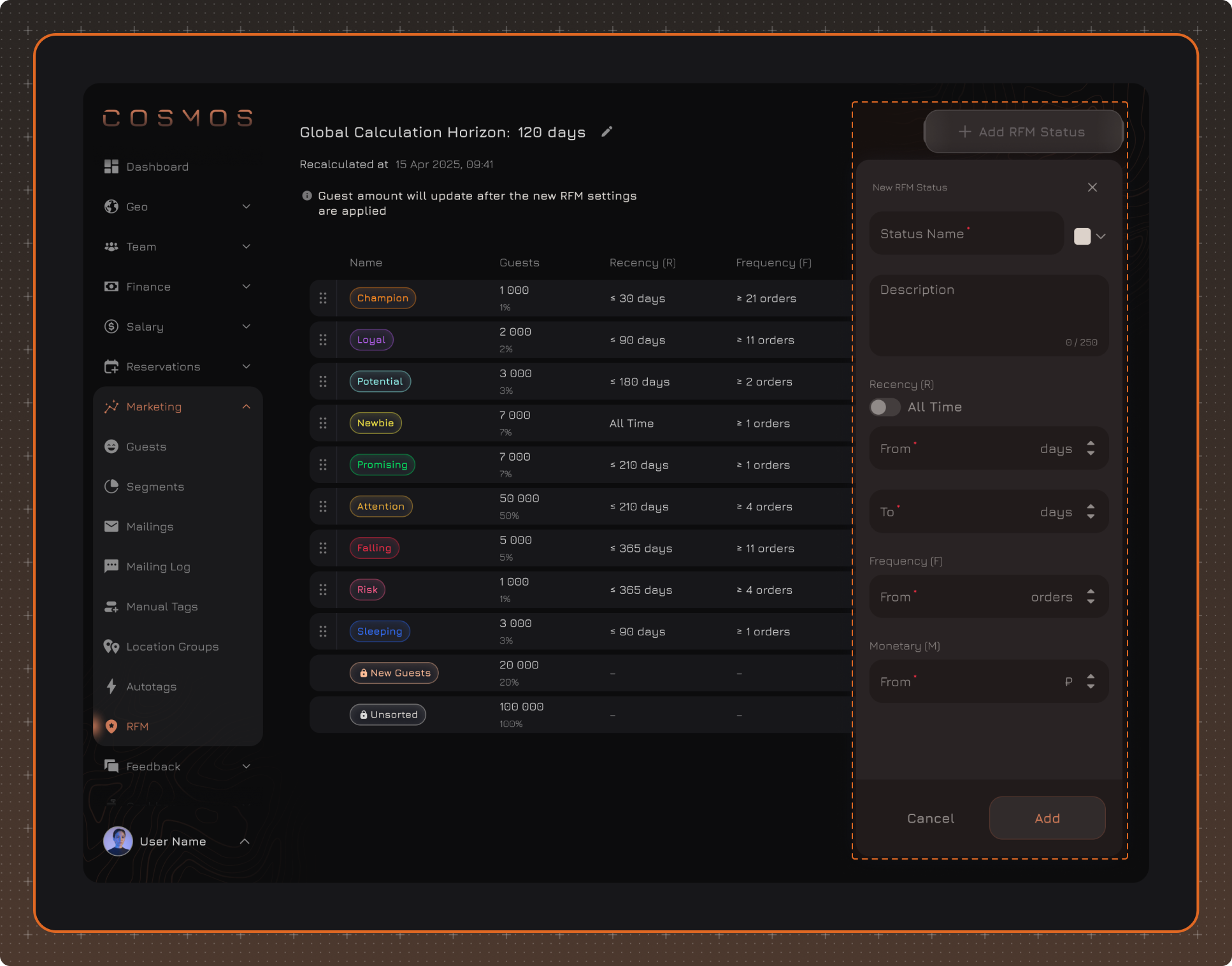
To create a new RFM Status, click Edit, then Add RFM Status, fill in the fields, and click Add.
-
Status Name
-
Color
-
Description
-
Recency (R) — determines how long ago the guest's last order should have been to match the status. If All Time is enabled, the day limit is removed and the guest's entire order history is included in the calculation.
-
Frequency (F) — determines the minimum number of orders the guest must make during the selected period.
-
Monetary (M) — determines the minimum amount the guest must spend during the selected period.
Editing an RFM Status
After clicking Edit, the page switches to edit mode.
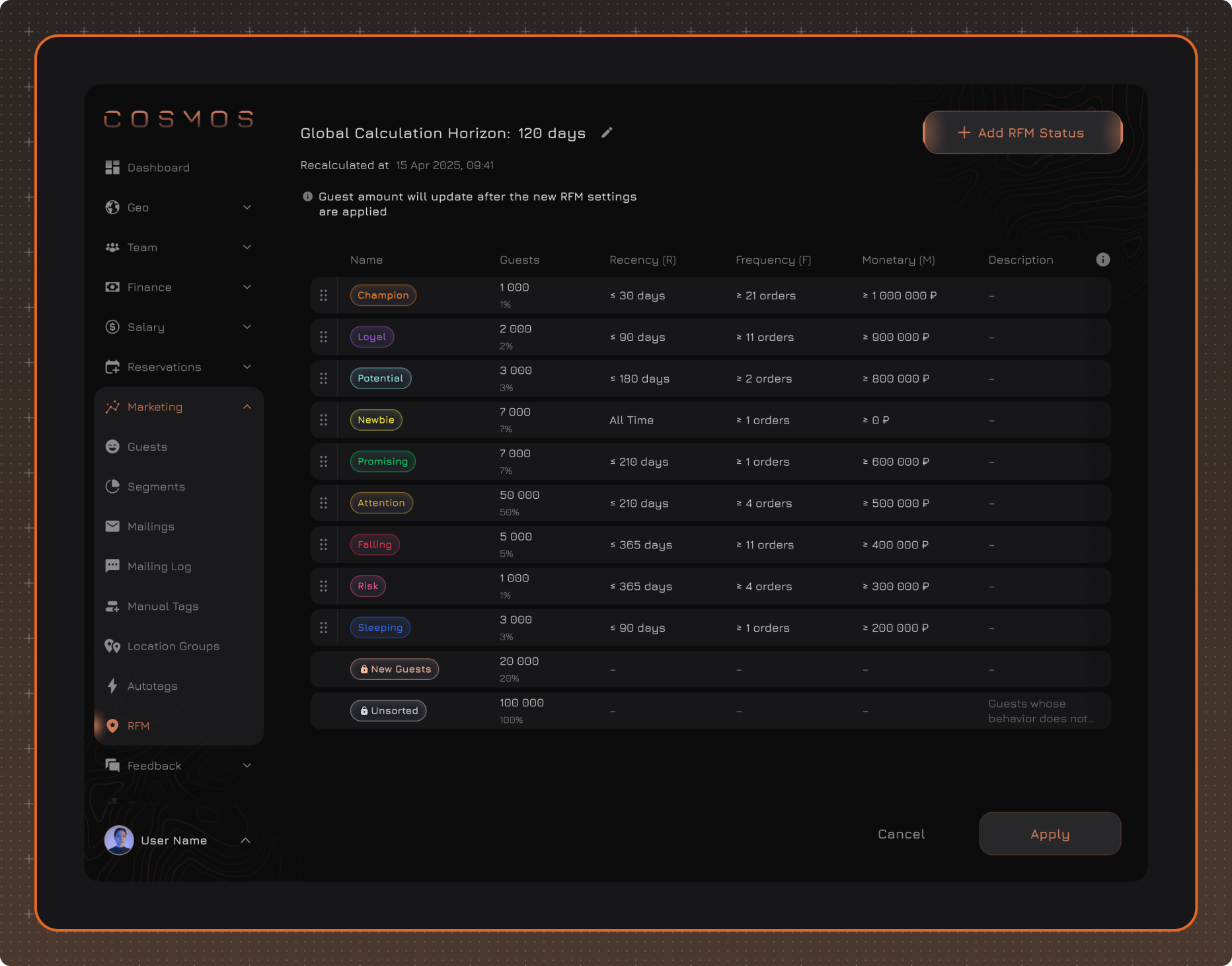
On the editing page, you can make the following changes:
-
Calculation Horizon. Specify the period in days used to calculate Frequency and Monetary. After the new settings are applied, the number of guests in the RFM Statuses will be recalculated.
-
Changing Priority. Change the priority of RFM Statuses by dragging and dropping the rows. If a guest meets the conditions of several statuses at the same time, the status with the higher priority will be assigned.
-
Adding an RFM Status.
-
Editing an RFM Status. Click the row of the required RFM Status to change its parameters.
Deleting an RFM Status
- Click Edit.
- Right-click the required RFM Status.
- Select Delete RFM Status.
- Confirm the deletion.