

Create Template
To create a template, go to Marketing → Mailings, click Templates, then Create.
Template Text
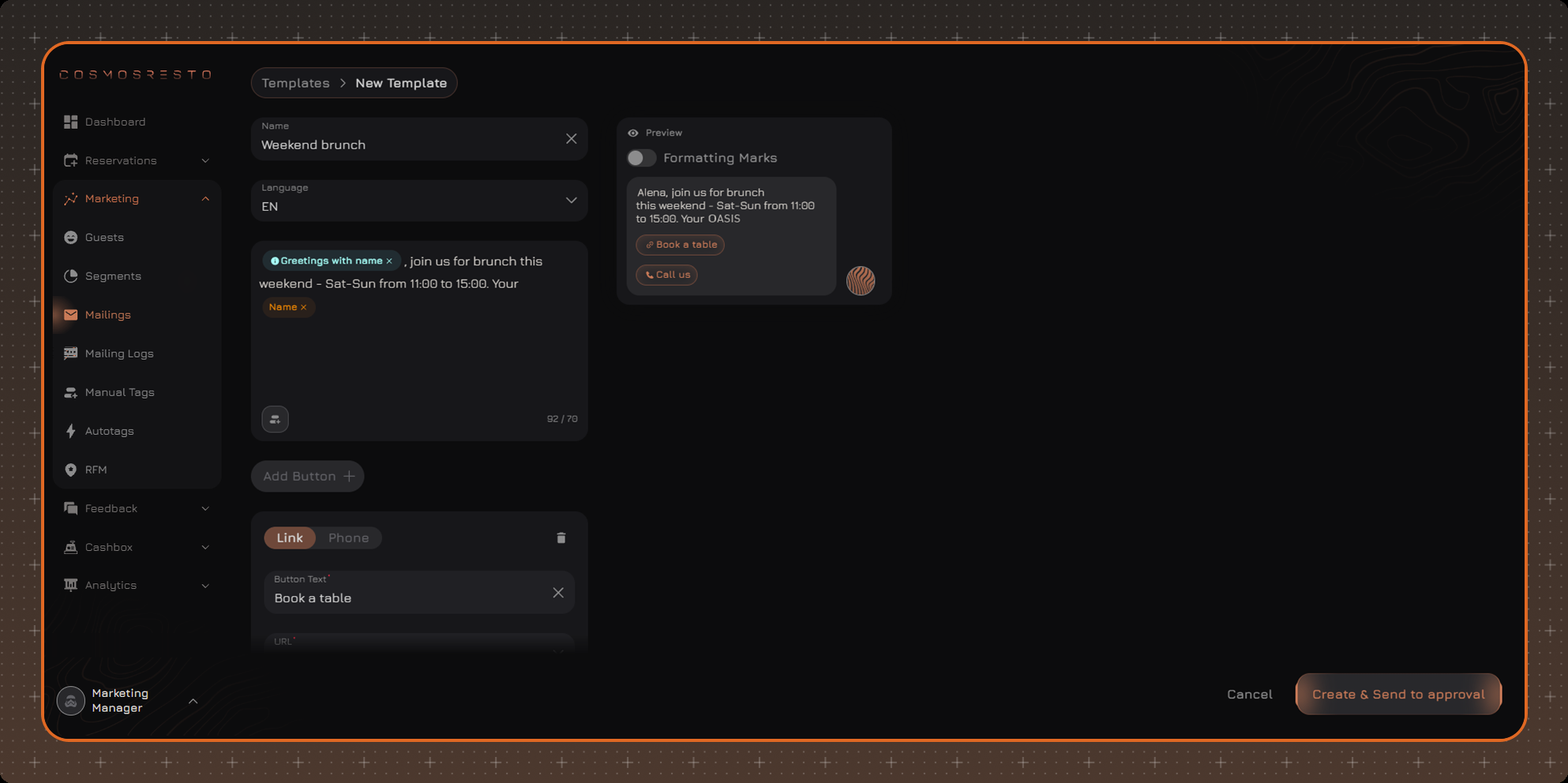
Fill in the fields:
- Name - used to select the template in a mailing. The name must be unique: two templates with the same name cannot be created, even if their languages differ
- Language - RU or EN. The language is sent for approval together with the template. The text is not translated automatically
- Message text - if necessary, add variables: guest, location, or loyalty program data. To add a variable, click the button in the message field and select the required value
The Preview block shows a sample message with the variable values filled in.
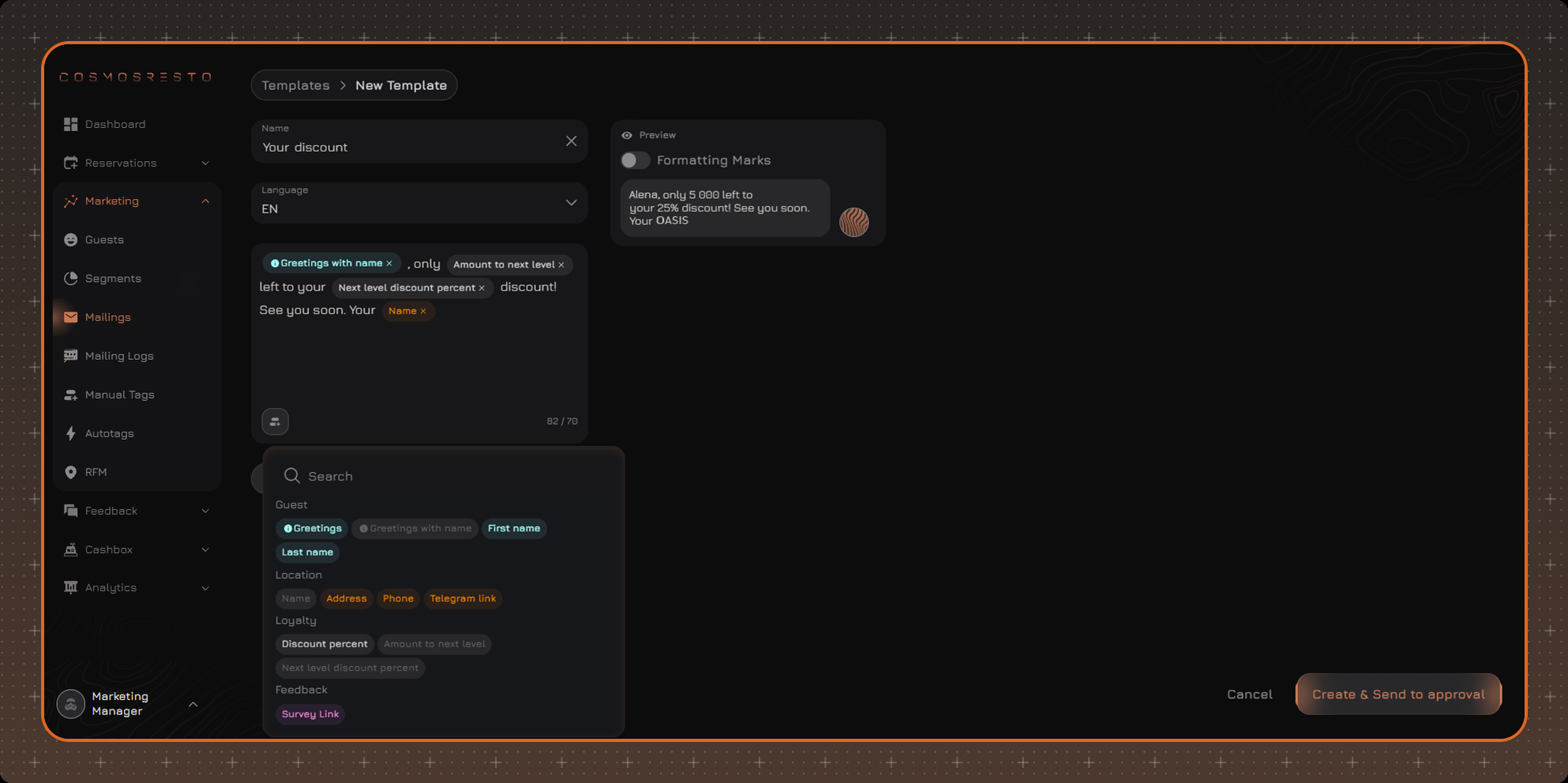
Variables are grouped into blocks:
- Guest - Greetings, Greetings with name, First name, Last name
- Location - Name, Address, Phone, Telegram link
- Loyalty - Discount percent, Amount to next level, Next level discount percent
- Feedback - Survey Link
If the guest is not a member of the loyalty program or is already at the highest level, the Amount to next level value is not inserted.
Buttons
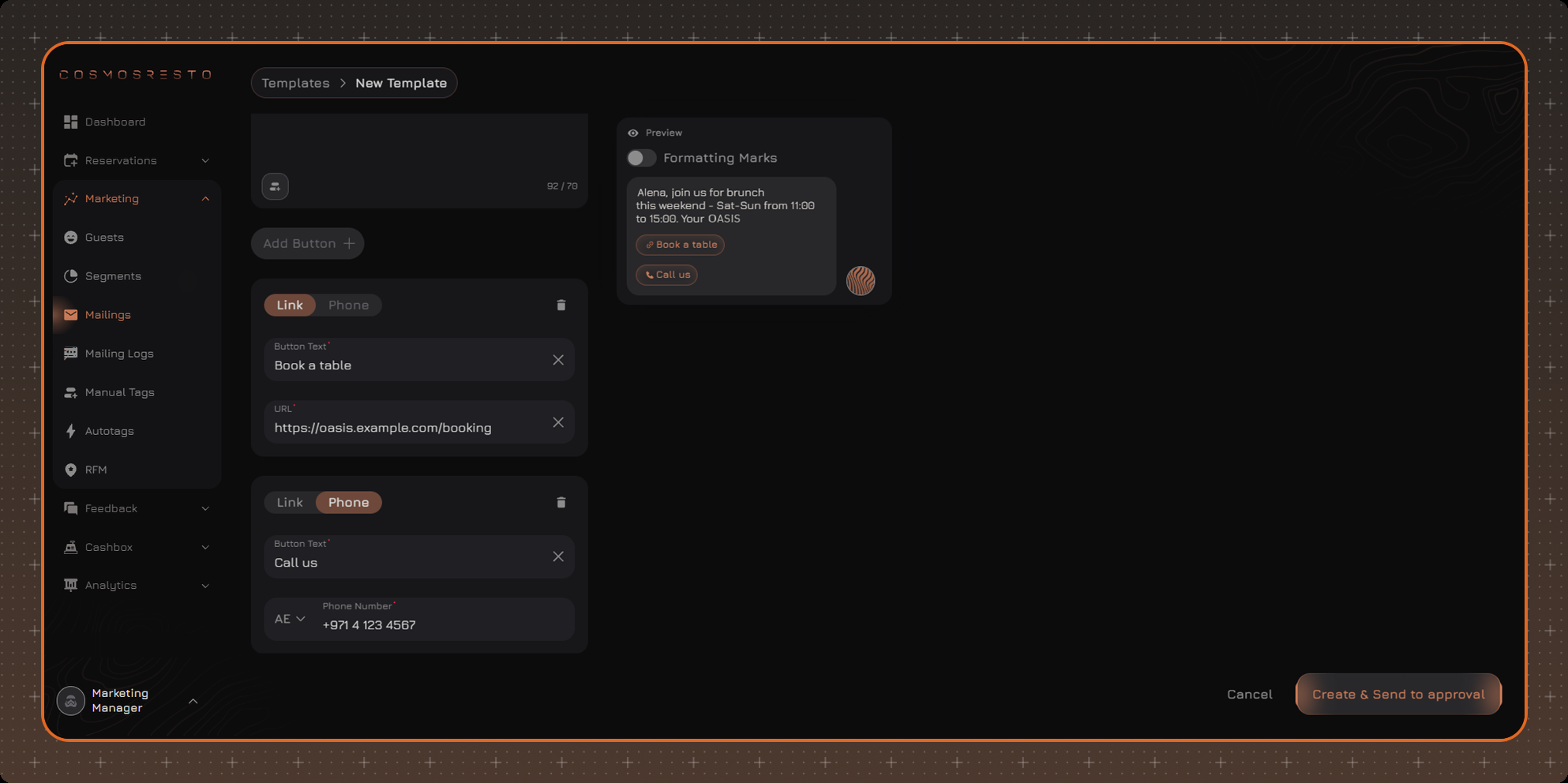
You can add up to two buttons to a template. Buttons are optional: a template can contain text only.
To add a button, click Add Button and select the type:
- Link - opens a web page. Enter the Button Text and the full page address in the URL field
- Phone - opens the dialer for a regular phone call, not a WhatsApp call. Enter the Button Text, select the country code, and enter the Phone Number
Button specifics:
- Only one phone button is allowed. One or two links, one phone, or a link and a phone are possible
- Button text - up to 20 characters
- Variables are not supported in buttons: the button text, link, and phone number are the same for all recipients
- Buttons appear in the message in the order they were added. Their order cannot be changed
Sending for Approval
Click Create & Send to approval. The template is created and immediately sent for approval to Meta. In the template list, it gets the On Approval status.
A template cannot be changed after it is created. If you need to adjust the text or buttons, create a copy of the template - for details, see Templates.
Once the template gets the Approved status, it can be selected in a WhatsApp mailing: