

Information
The Location Groups section allows you to combine multiple locations into groups to configure user access to the guest database.
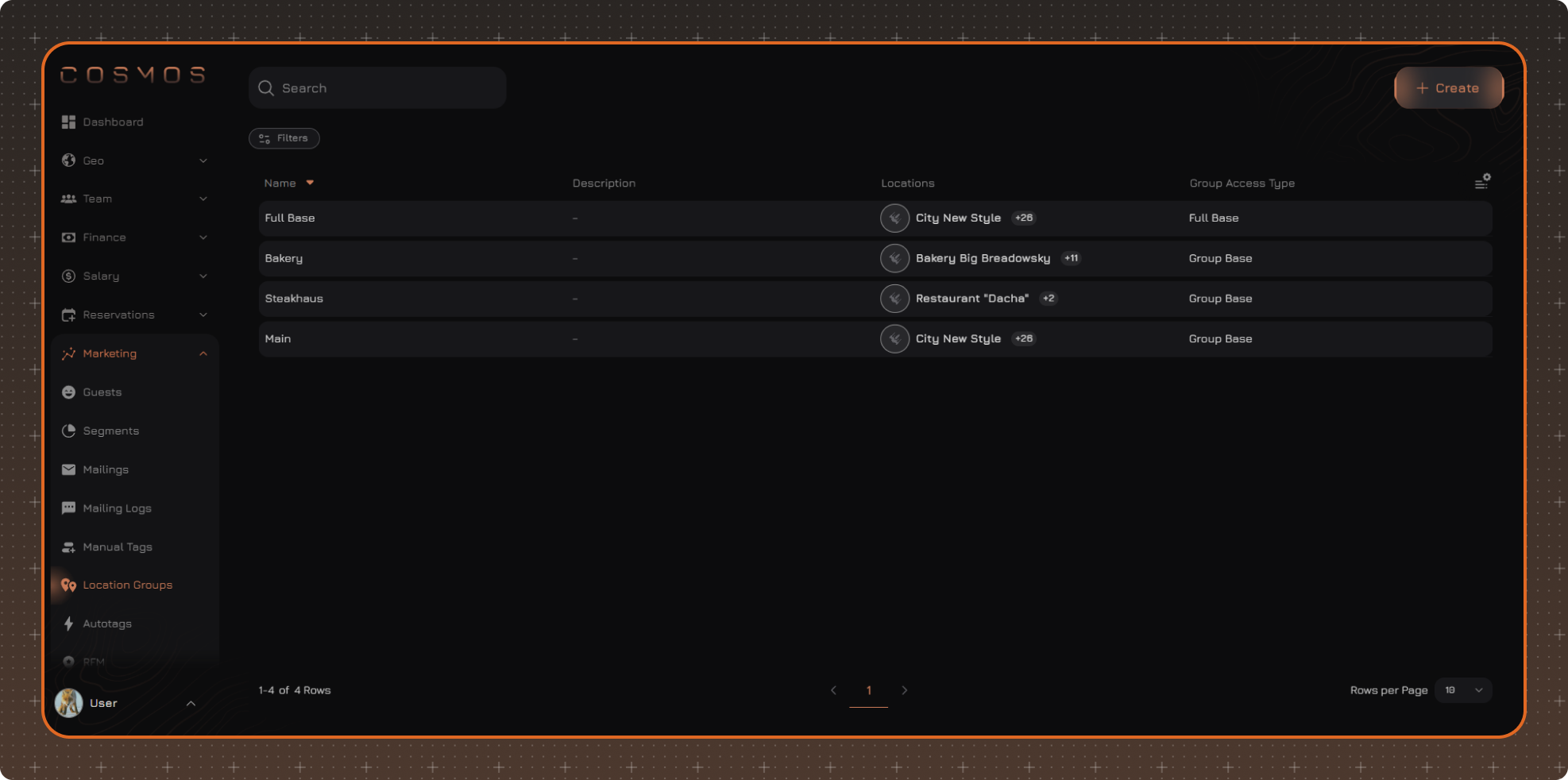
For each group, you can define which locations it includes and select the type of access to the guest database. This allows users to access either the entire guest database or only the data for a selected Location Group.
Example
The Bakery group includes several bakeries in the chain. Employees of each bakery can work with the shared guest database of the Bakery group, regardless of which bakery in the group the guest previously visited.
When creating a group, keep in mind that a user who has access to at least one location in the group automatically gets access to all locations included in that group.
View Guest Data by Location Groups
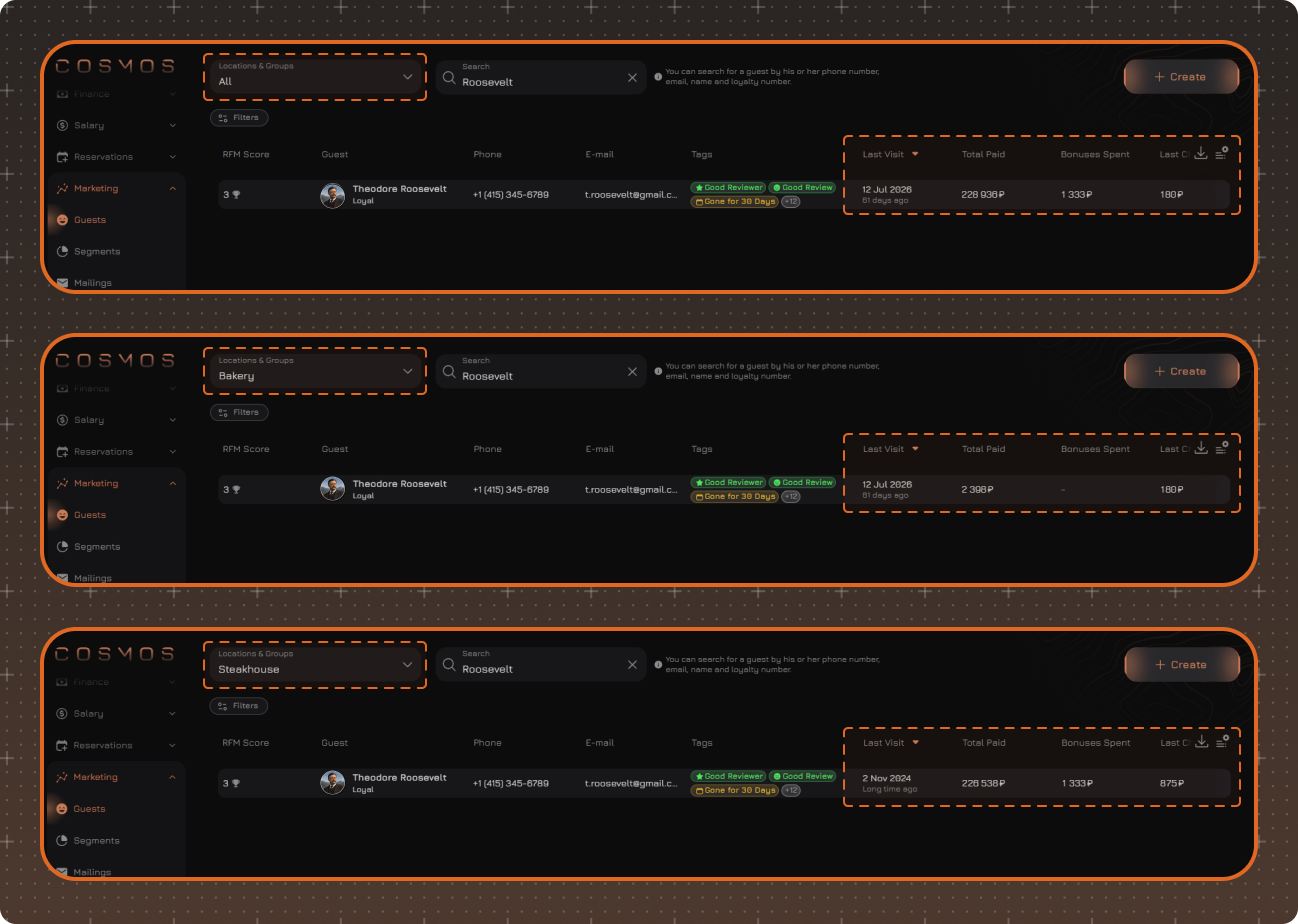
In Marketing → Guests, the Locations and Groups selector allows you to view guest data for the entire chain, a specific Location Group, or a specific location.
The example below shows how the same guest's data is displayed when viewing different Location Groups.
Location Groups Table
To change the displayed columns, click the table settings button in the upper-right corner.
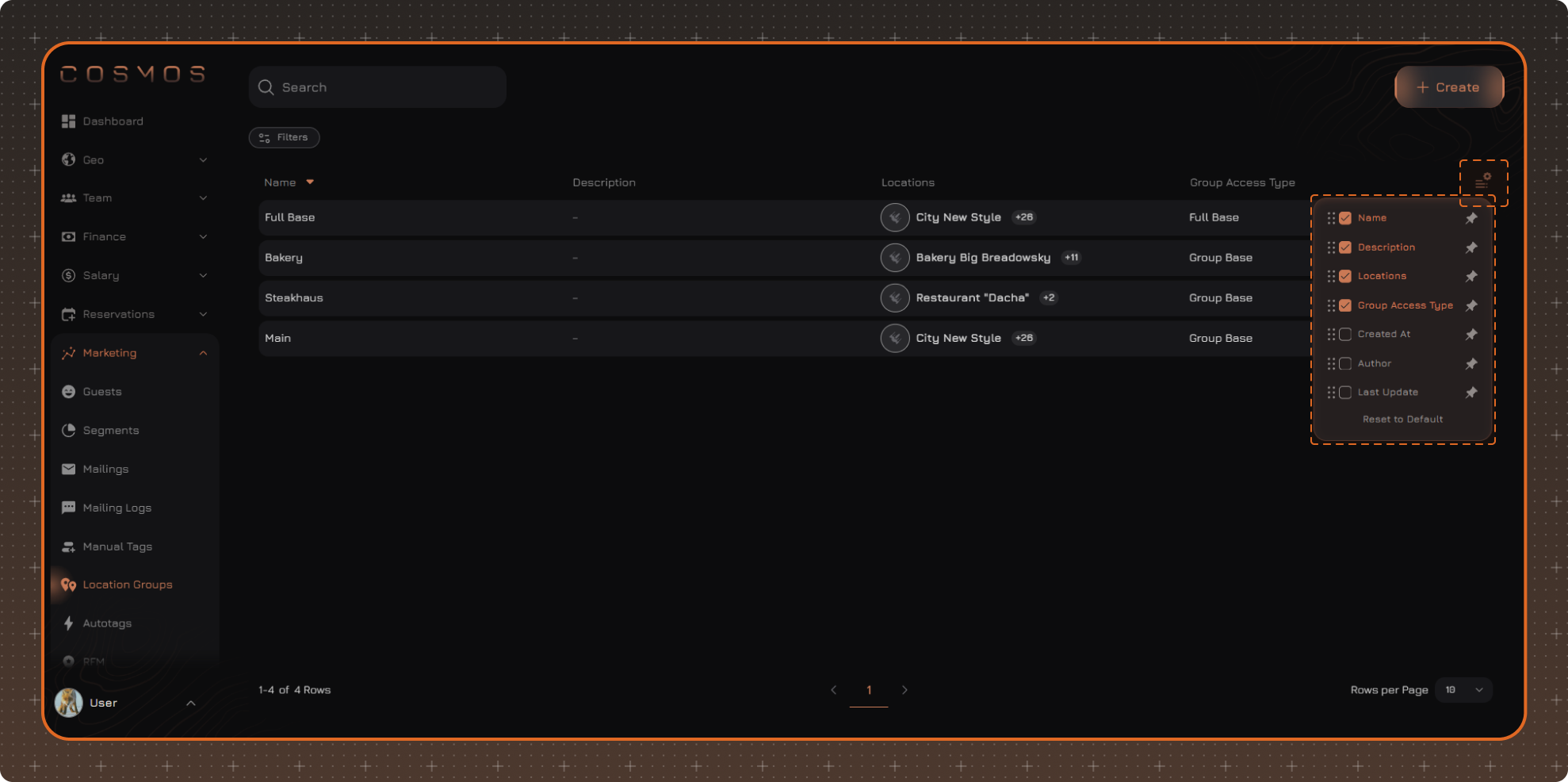
In the panel that opens, you can:
✔ select the columns to display
✔ pin the required columns
✔ restore the default settings using Reset to Default
Note. Table settings are saved after the page is refreshed. The settings are reset after you log out.
Data Filtering
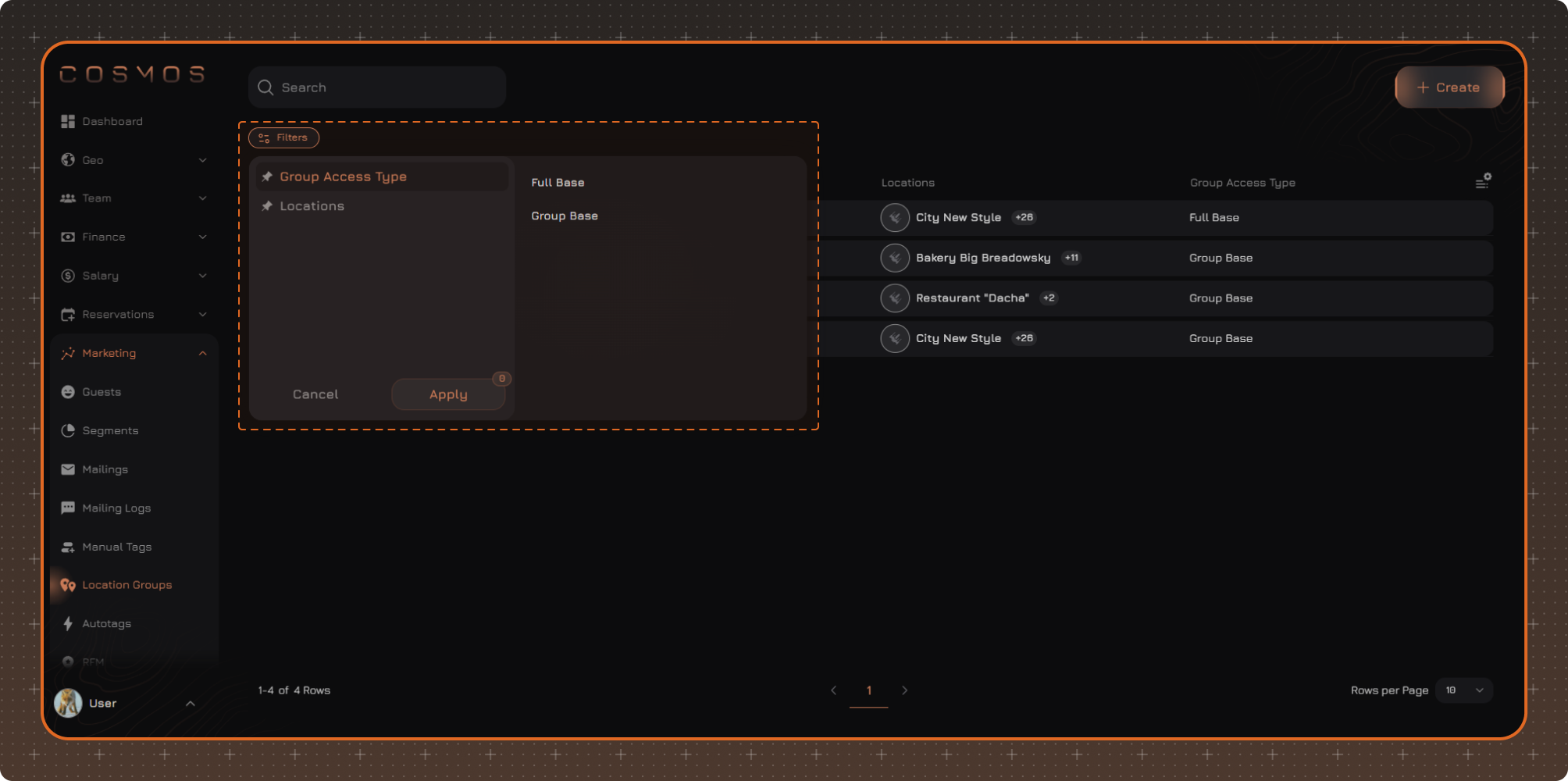
If necessary, click Filters to set additional filtering conditions.
After selecting the required values, click Apply.
Applied filters are displayed above the table. To remove an individual filter, click × next to its name. To reset all filters, click Clear Filters.
Note. Filter settings are saved after the page is refreshed. The settings are reset after you log out.