

General Information
Manual Tags allow you to manually mark guests and store information that should be taken into account when providing service. For example, they can be used to identify VIP guests, dietary restrictions, preferences, or special service requirements.
Manual Tags are used in several sections of the system:
✔ Reservations — tags can be displayed in the guest profile, on the reservation timeline, and on the floor plan tables, depending on the group settings. If editing is enabled, tags can be assigned and removed directly from a reservation
✔ Guests — tags are displayed in the guest list and guest profile, where they can be assigned and removed
✔ Waiter App — tags can be viewed and assigned to guests if this is allowed in the group settings
✔ Guest Segments — tags are used as one of the filters when creating segments
Manual Tag Group List
The Manual Tag Group List displays the created groups and their main parameters.
To find a group, use the search bar at the top of the page. The search is performed by group name.
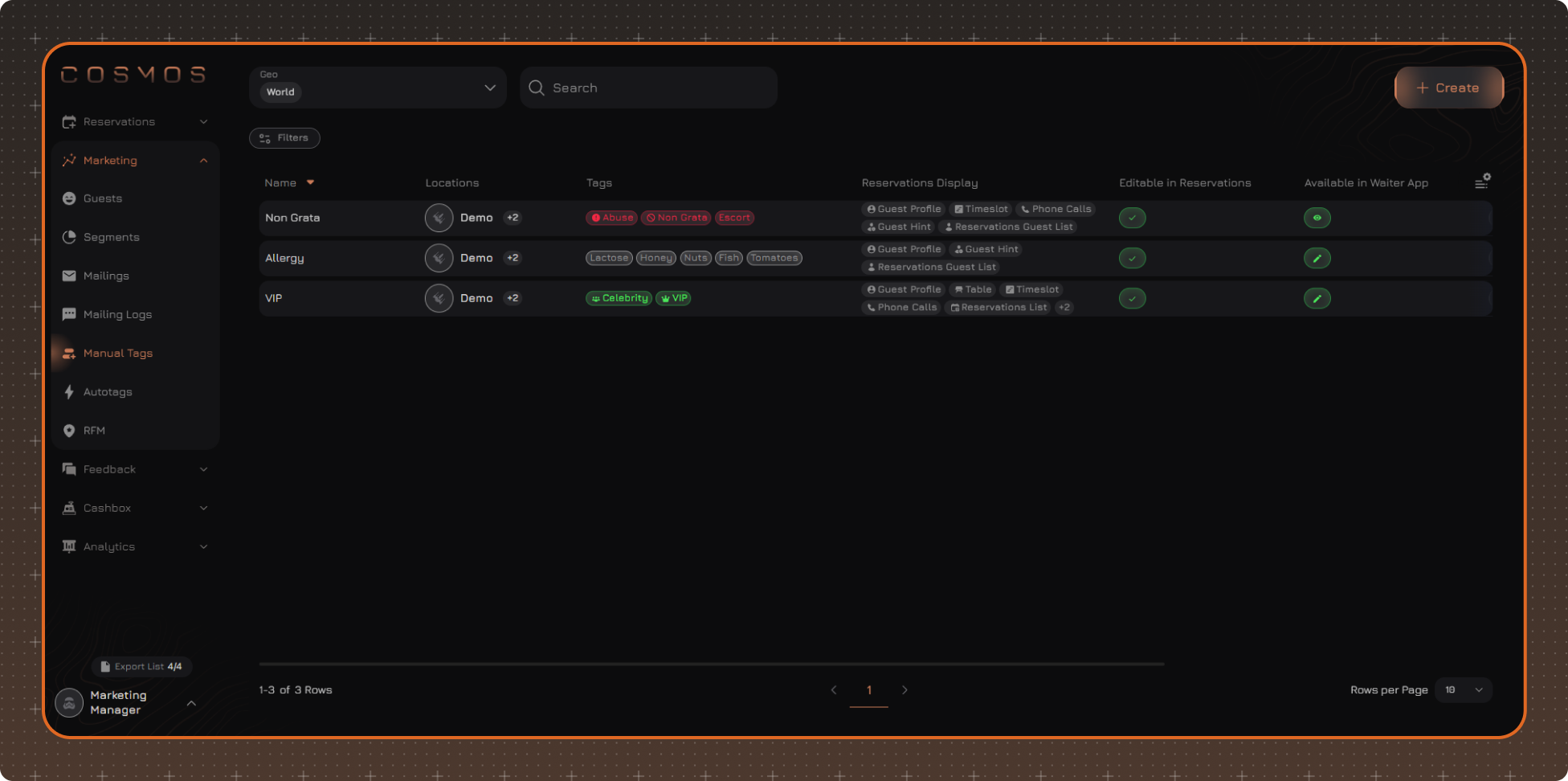
Table Settings
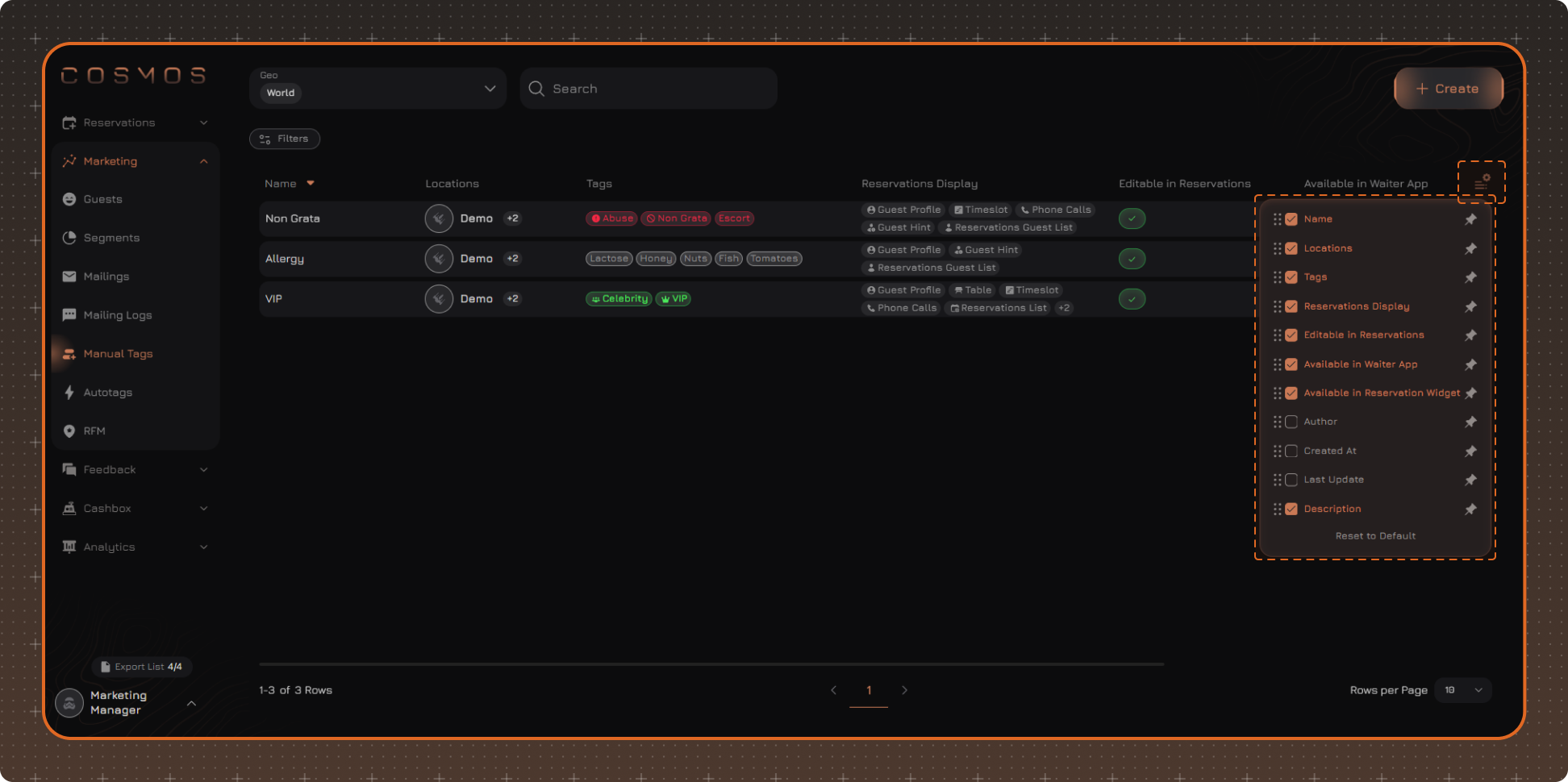
By default, the following columns are displayed in the table:
- Name — the name of the manual tag group
- Locations — the locations linked to the group
- Tags — the tags included in the group
- Reservations Display — the elements of the Reservations interface where the group tags are displayed
- Editable in Reservations — indicates whether the group tags can be added or removed in Reservations
- Available in Waiter App — indicates whether the tag group is available in the Waiter App and whether it can be viewed or edited there
- Available in Reservation Widget — indicates whether the tag group is available in the Reservation Widget. If enabled, the group's Public Name is displayed in the column; if no Public Name is specified, the group name is used instead
- Description — the description of the manual tag group
Click Table Settings to change the displayed columns. You can also enable the following columns:
- Author — the employee who created the group, including their name, role, and grade
- Created At — the date and time when the group was created
- Last Update — the employee who last updated the group and the date and time of the update
Note. Table settings are saved after the page is refreshed. The settings are reset after you log out.
Data Filtering
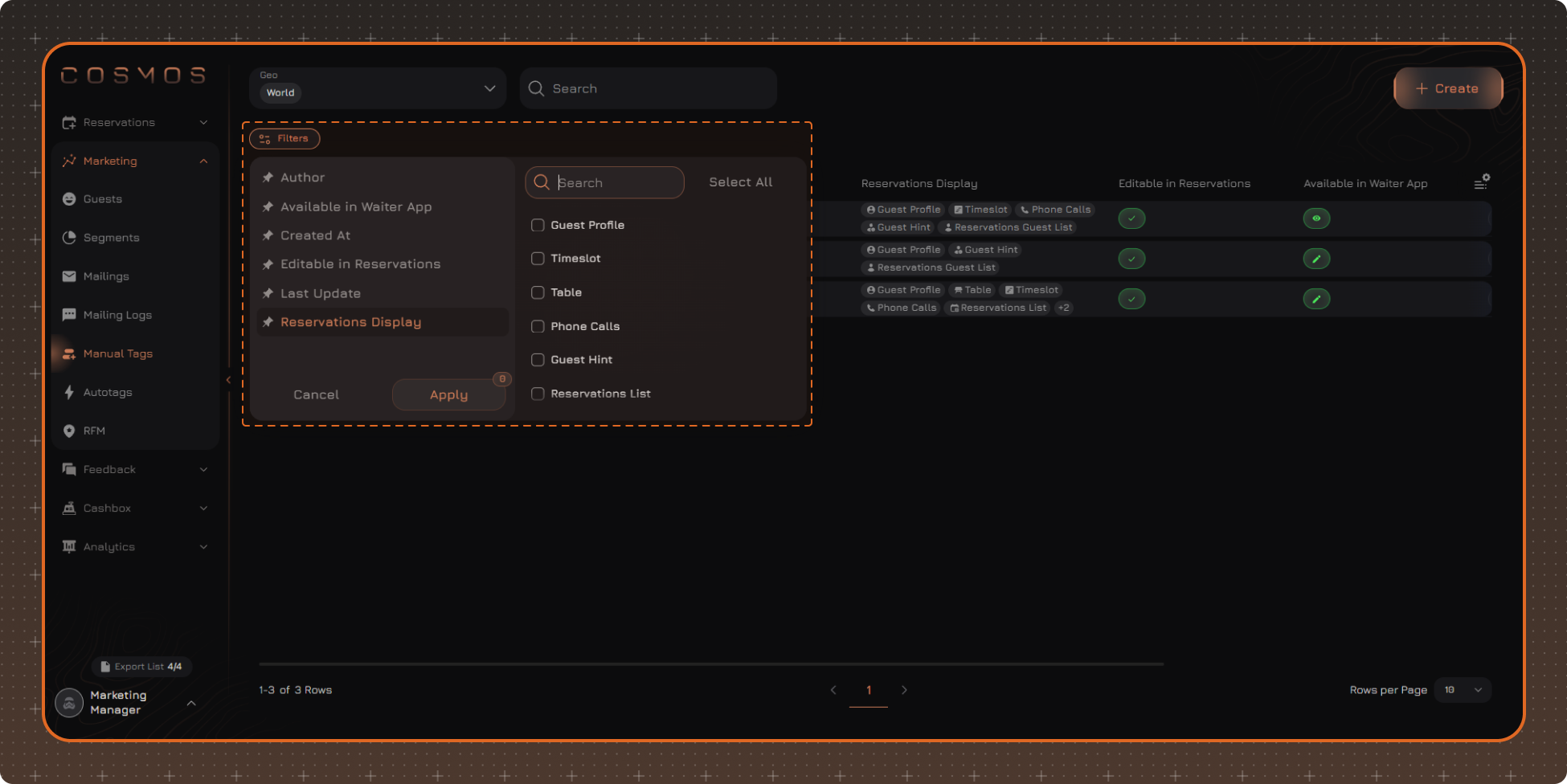
To quickly find the required group, use the search bar and filters above the table.
Filtering is available by the following parameters:
✔ Author
✔ Created At
✔ Available in Waiter App
✔ Reservations Display
✔ Last Update
✔ Editable in Reservations
Note. Filter settings are saved after the page is refreshed. The settings are reset after you log out.