

Create and Edit Manual Tags
Creating a Manual Tag Group
To create a new Manual Tag group:
- Click Create.
- Fill in the group settings.
- Click Save.
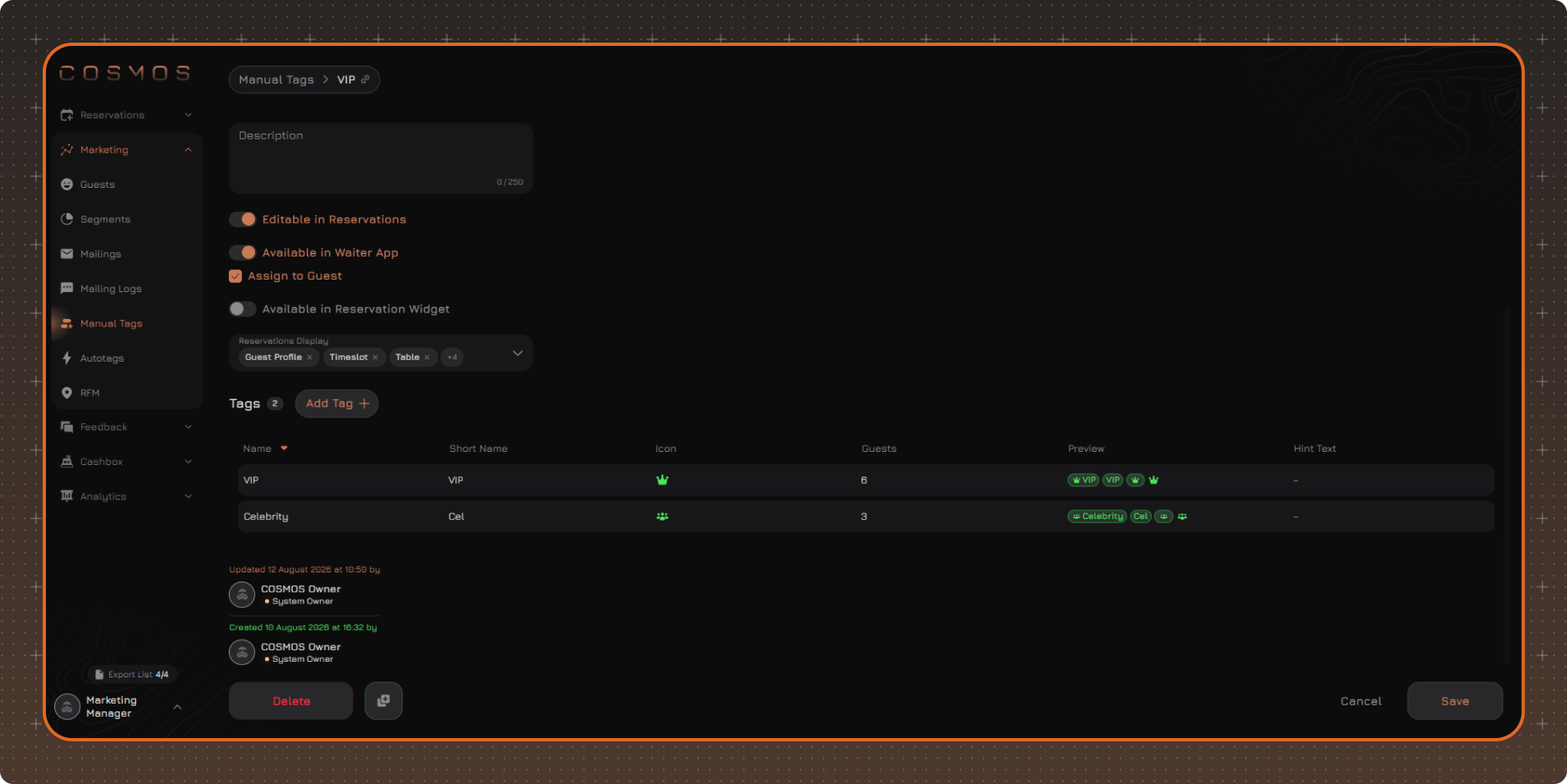
1. Name
2. Locations
3. Description
4. Editable in Reservations — allows you to assign and remove tags from this group directly in the reservation system.
5. Available in Waiter App — allows you to use tags from this group in the Waiter App.
- Assign to Guest — allows you to assign and remove tags from this group in the Waiter App. This setting becomes available only when Available in Waiter App is enabled.
7. Available in Reservation Widget — allows you to display tags from this group in the Reservation Widget. When this setting is enabled, you can specify a public group name that will be displayed in the widget.
8. Reservations Display — allows you to choose where the group tags will be displayed: in the guest profile, time slot, on the table, in the call widget, in the guest hint, and in the Reservation List.
Creating a Tag
To add a tag to a group:
- Click Add Tag.
- Fill in the tag settings.
- Click Add.
- Click Save for the changes to take effect.
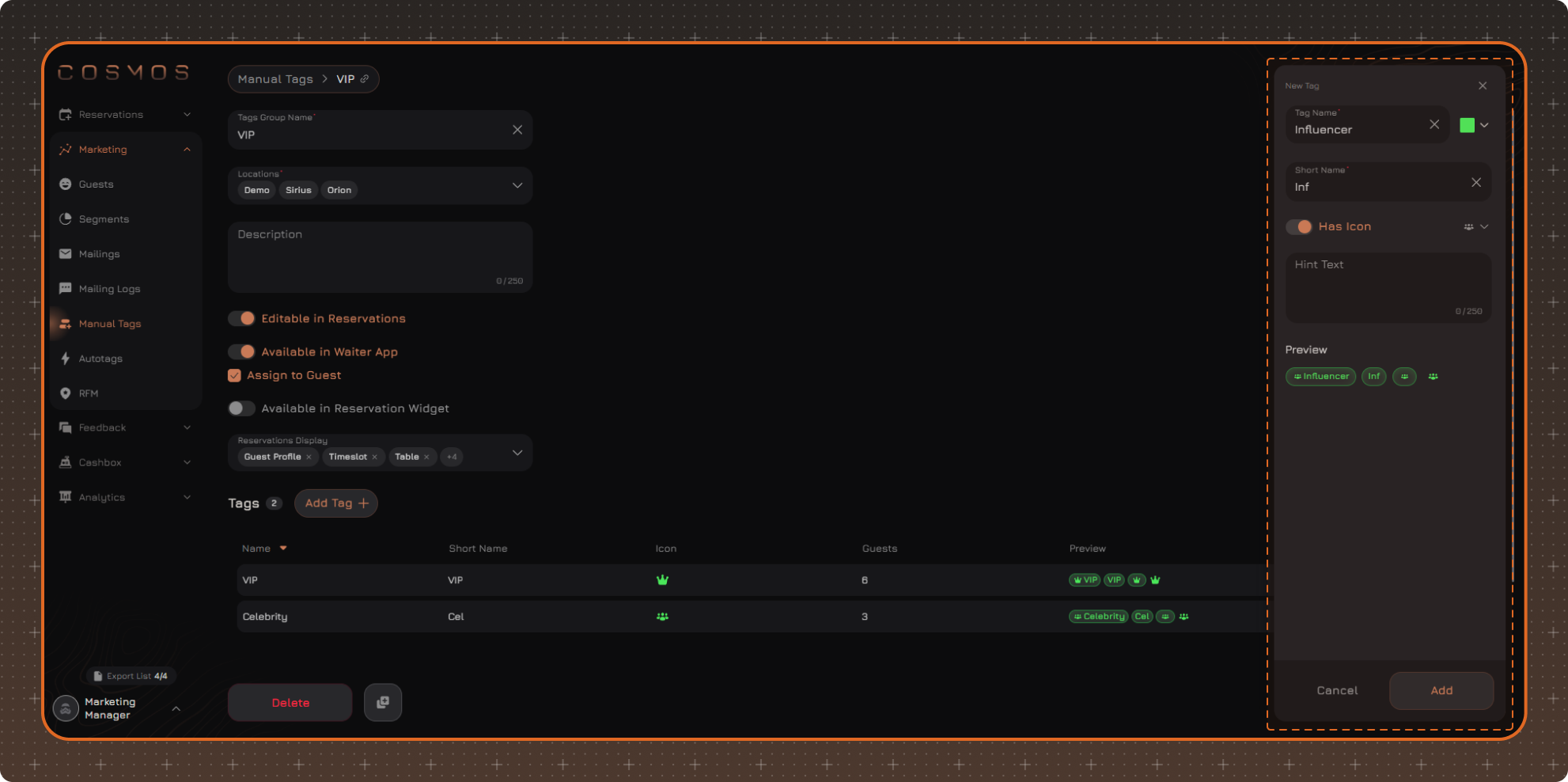
1. Name
2. Short Name
3. Color
4. Icon
5. Hint Text
Editing
To change the settings of a group or its Manual Tags, open the required group, make the changes, and click Save.
Deleting a Manual Tag Group
To delete a Manual Tag group, open the actions menu in the group list or on the group page and select Delete.
Confirm the deletion in the window that opens.
When a group is deleted, all tags in the group are deleted and removed from all guests they were assigned to.
Deleting a Manual Tag
To delete a Manual Tag, open the tag group, remove the required tag from the list, and click Save.
After deletion, the tag will be removed from all guests it was assigned to.