Menu
In this section, you will learn how the menu works in CosmosResto, how to count menu groups in guest stats, and how to add a product photo.
The Cashbox → Menu section shows the menu of your locations: groups and products that CosmosResto receives from the POS system (iiko). Products cannot be created, renamed, or deleted in CosmosResto - all changes are made in the POS.
The menu is synchronized with the POS once a day. New products, changes, and deactivated products appear in CosmosResto after the next synchronization.
Menu Table
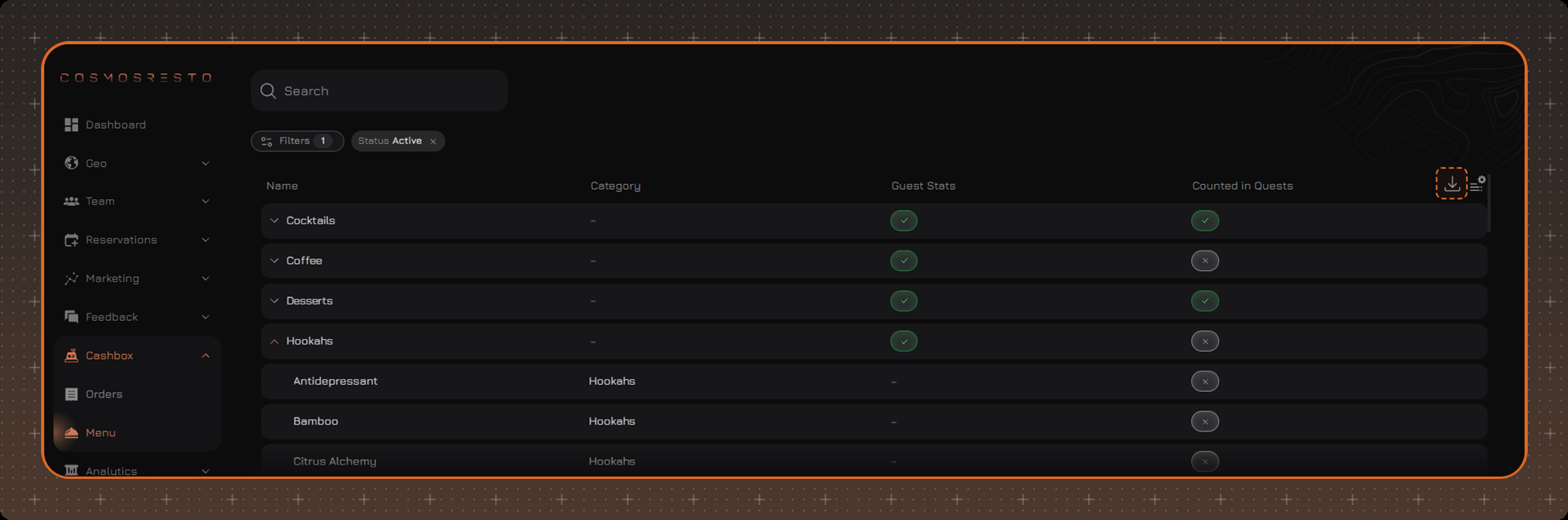
The menu is displayed as a tree: groups expand and collapse, and contain nested groups and products. The nesting of groups is the same as in the POS menu.
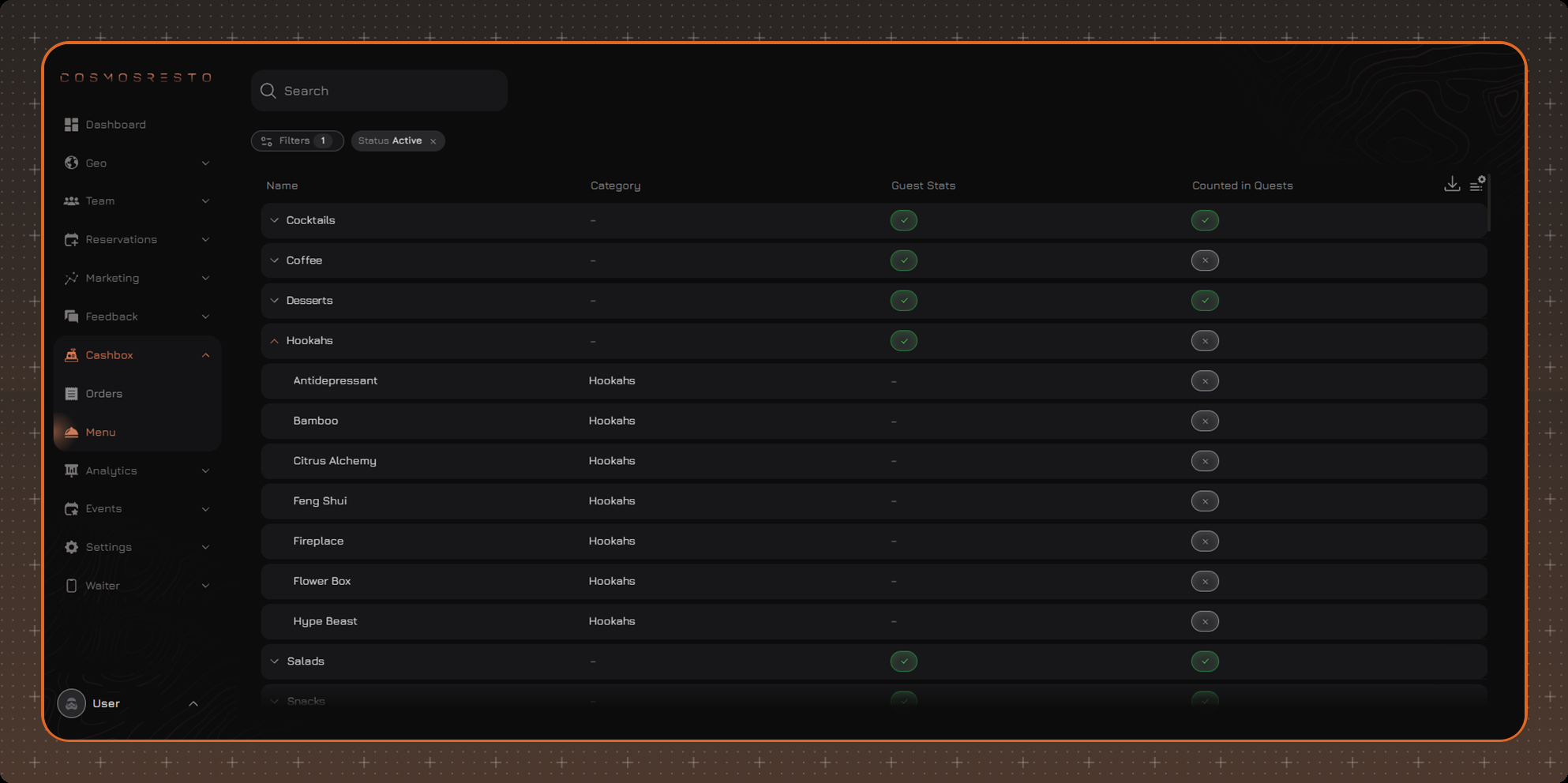
Products and groups deactivated in the POS remain in the table and are shown with hatching.
If a group is created in the POS but has no products yet, it is not displayed in CosmosResto. The group appears in the menu after at least one product is added to it and the next synchronization with the POS is completed.
Search and Filters
Search works across all menu levels: it finds not only top-level groups, but also nested groups and products at any depth. Search starts working after you enter 3 characters.
Filters contain one filter - Status: Active or Deactivated.
Guest Stats
The guest profile has a Top Categories block - the three menu groups the guest has spent the most on. For more details, see Guest Profile.
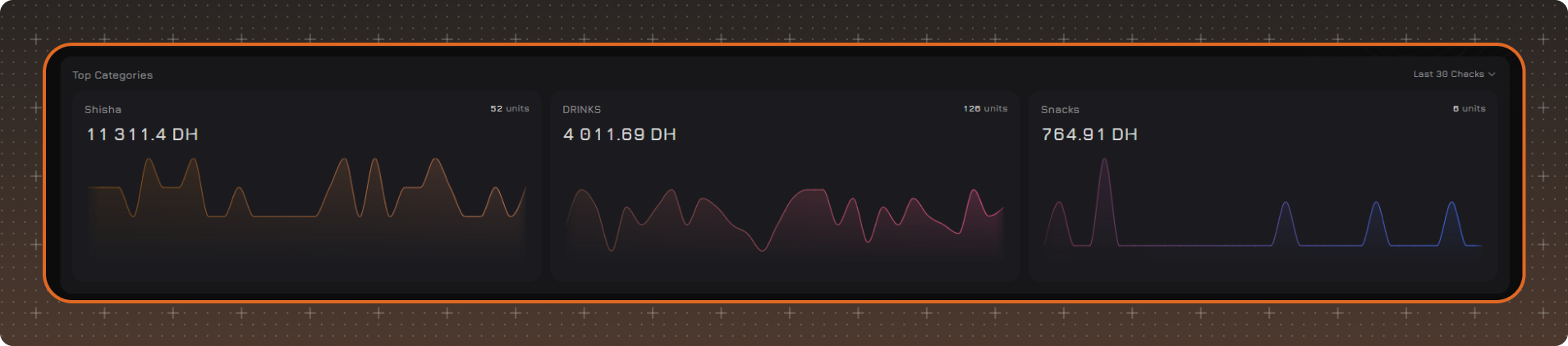
By default, only top-level groups are counted. Everything the guest ordered within a group is added up into one amount. For example, beer, tea, and coffee from the Drinks group appear in the stats as one line - Drinks.
If you want to see a nested group separately, for example how much the guest spends on beer, enable it for that group: right-click the group and select Add to Guest Stats. After that, beer is counted separately - Drinks / Beer, and Drinks includes everything else. To return the group to the total amount, select Remove from Guest Stats.
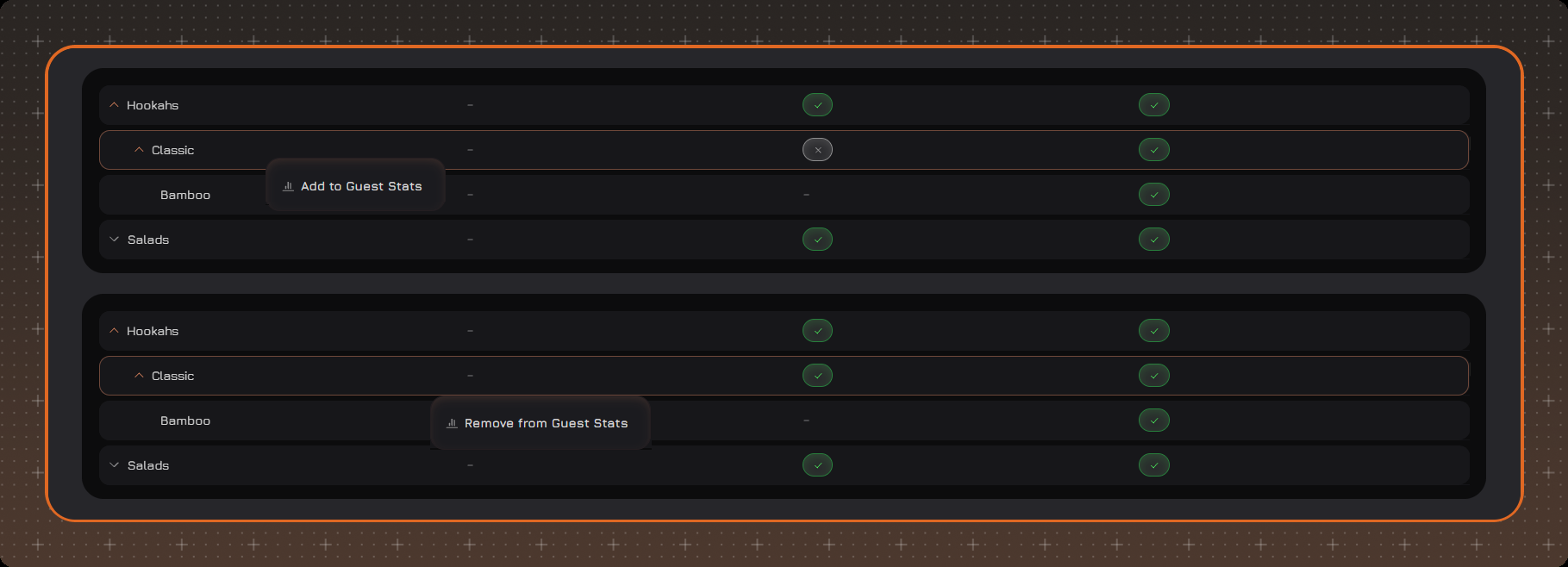
The Guest Stats column shows whether a group is counted separately: a check mark means yes, a cross means no.
- Top-level groups, for example Drinks, are always counted separately - they always have a check mark, and it cannot be turned off.
- You can turn counting on and off only for nested groups.
- Products have a dash in this column: a single product is never shown in the stats separately, it is always included in the amount of its group.
Product Photo
A photo can be added only to a product - groups cannot have a photo. A product has one photo for all locations. The photo is kept after synchronization with the POS and after the product is deactivated.
To add a photo, click the product - the Item Image page opens. If the product already has a photo, you can replace it, change its position, or delete it on this page.
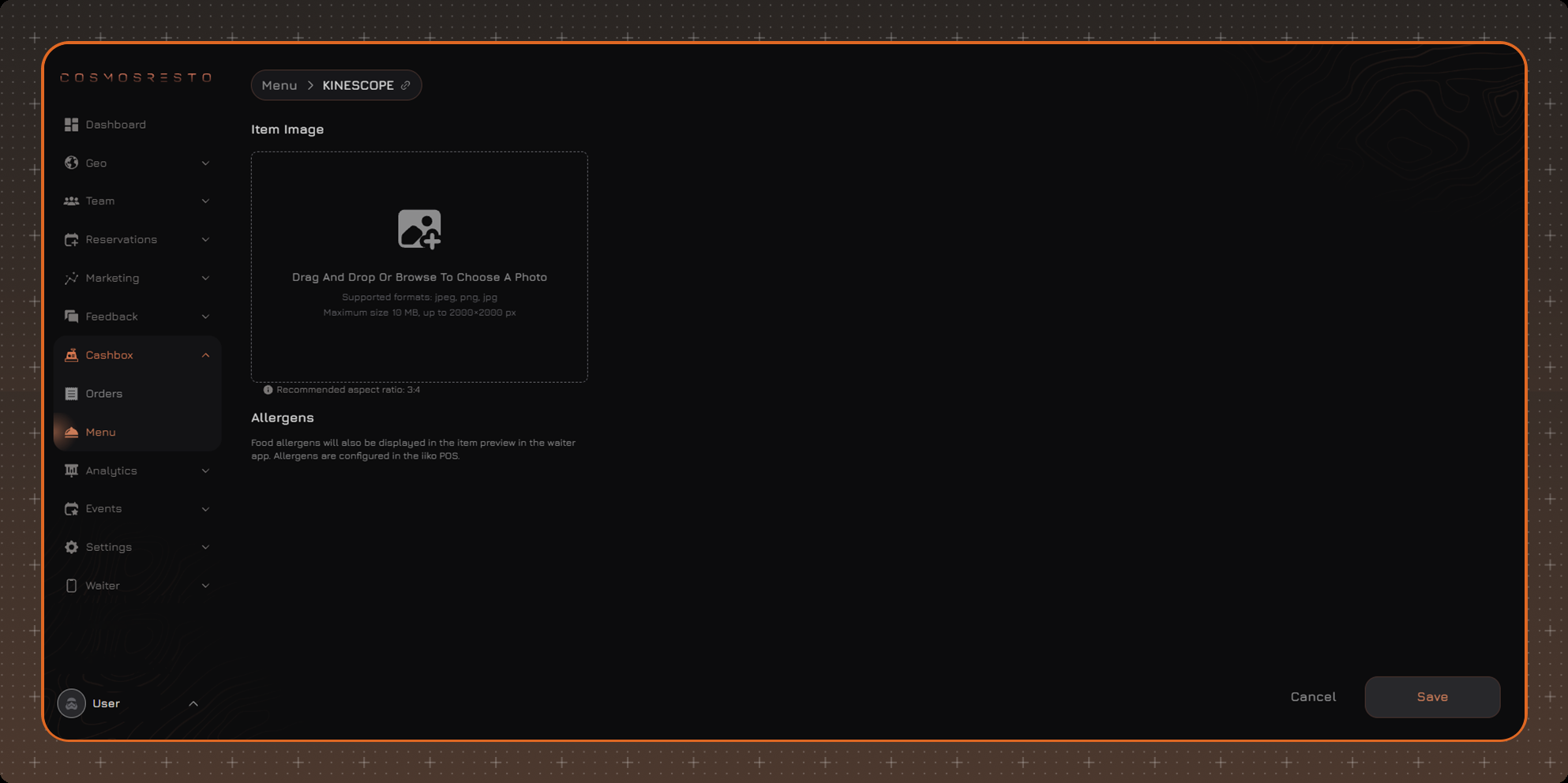
Photo requirements:
- JPG, JPEG, or PNG format;
- file size - up to 10 MB;
- width and height - up to 2000 px;
- recommended aspect ratio - 3:4.
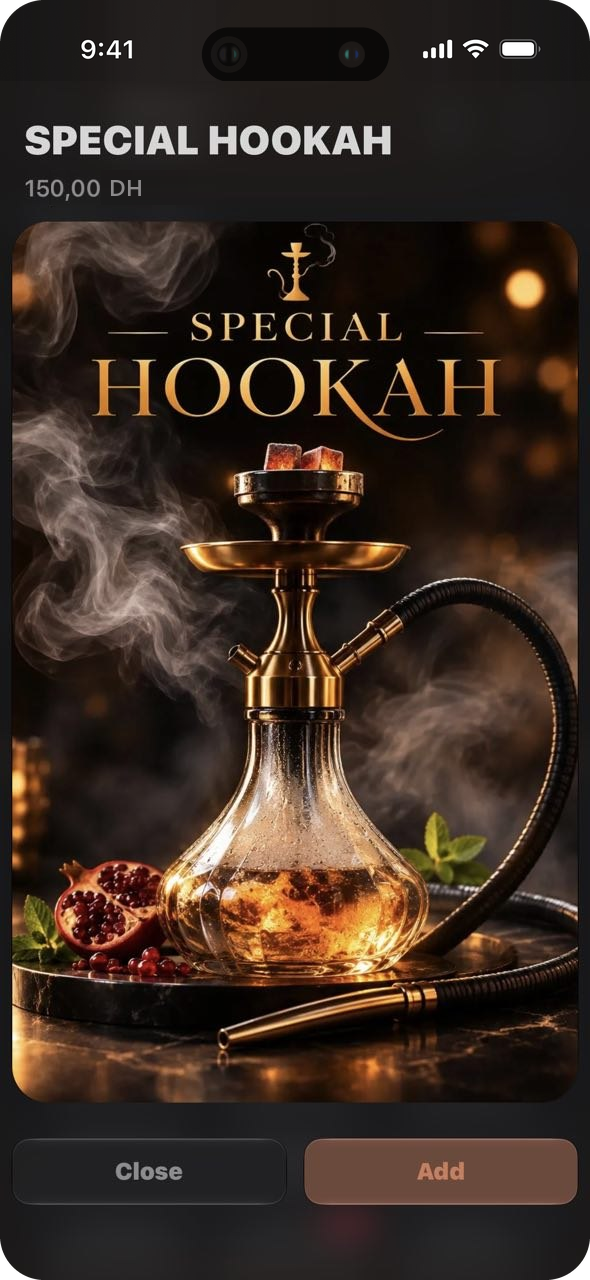
The photo is shown in the Waiter app: the waiter opens it by long-pressing the item in the menu and can show it to the guest.
Export
You can export the menu to a file using the export button in the upper right corner of the table. The file includes groups and products according to the Status filter: for example, if Active is selected, the file contains only active items. Without the filter, all items are exported, including deactivated ones. For each item, the group it belongs to is specified.