

POS Integration
In this section, you will learn how to map CosmosResto payment types to the payment types of the iiko POS system and how to refresh data from the POS.
The Settings → POS Integration section links CosmosResto payment types to the payment types of the POS system (iiko). Mapping is required so that payments for orders from the POS are correctly recorded in CosmosResto.
CosmosResto has three payment types: Cash, Card and Bonuses. iiko usually has more payment types, so several iiko payment types can be mapped to one CosmosResto payment type.
Payment Types Table
Mapping is set up separately for each location. The location is selected in the Location field above the table.
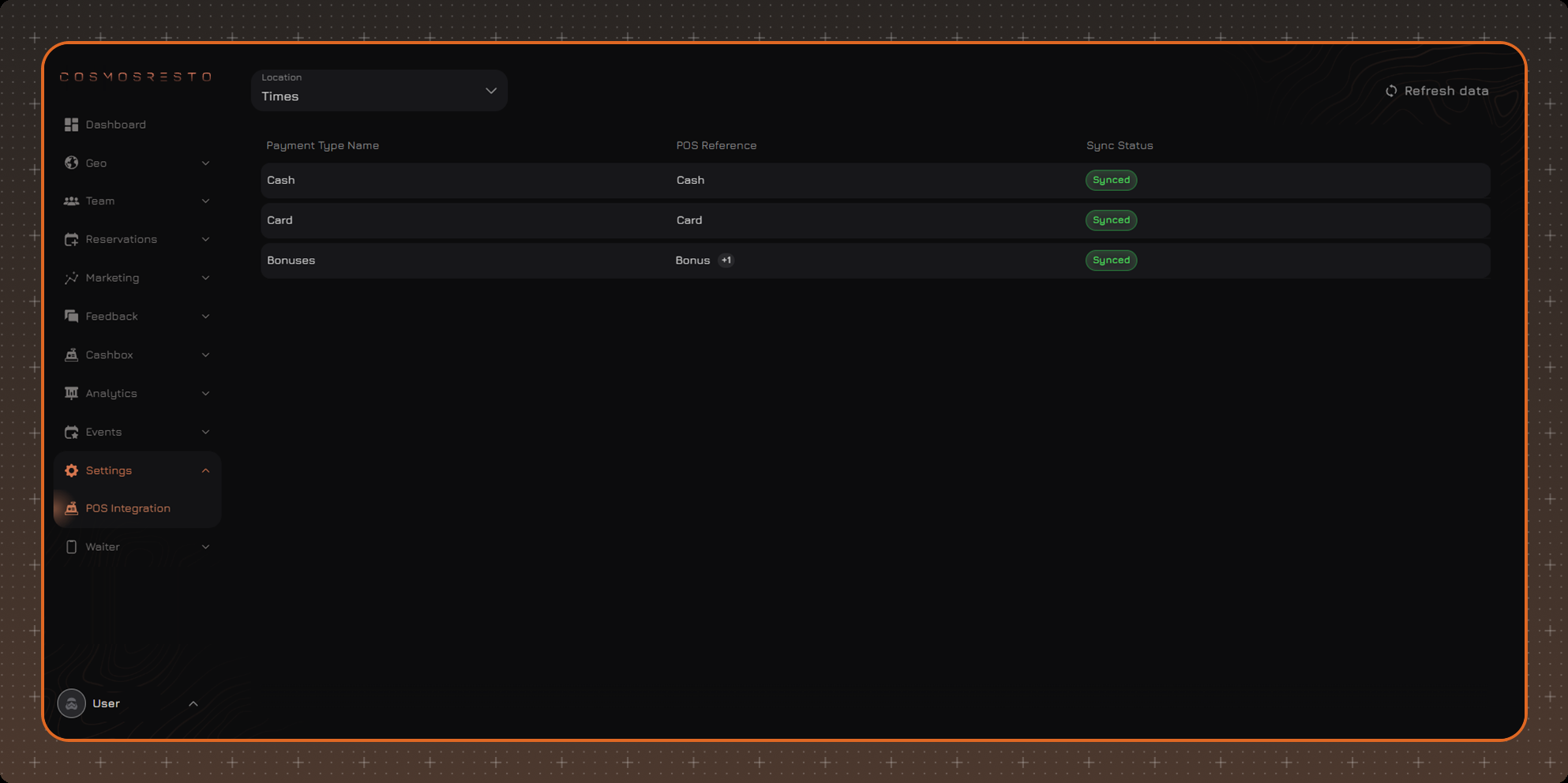
The table contains the following columns:
- Payment Type Name - the CosmosResto payment type. The list is fixed: payment types cannot be added or removed.
- POS Reference - the iiko payment types mapped to the CosmosResto payment type. If several types are mapped, the first one is shown with a counter of the rest (for example, +1). If there is no mapping, a dash is shown.
- Sync Status - the mapping state: Synced - the payment type is mapped to iiko, Not Synced - the payment type has not been mapped yet.
Payment Type Mapping
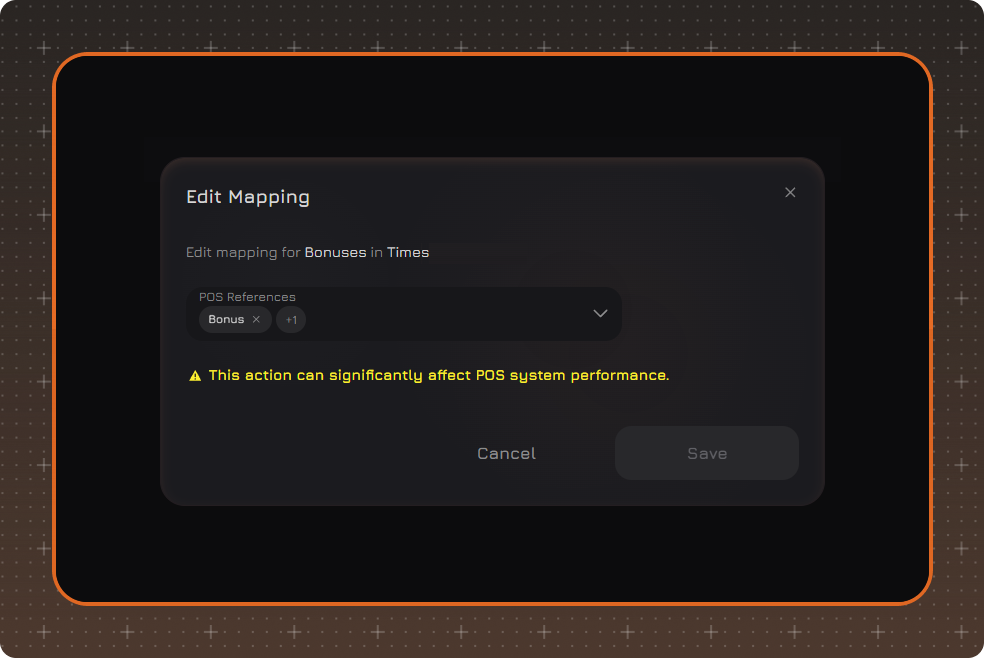
Mapping is set up in the Edit Mapping window, which opens when you click a table row. The window shows the CosmosResto payment type and the location for which the mapping is being set up.
In the POS References field, select one or more iiko payment types. The list offers Search and Select All. Confirm the selection with Apply and save the mapping with Save. Selected types are shown in the field, and an unneeded one can be removed with the cross.
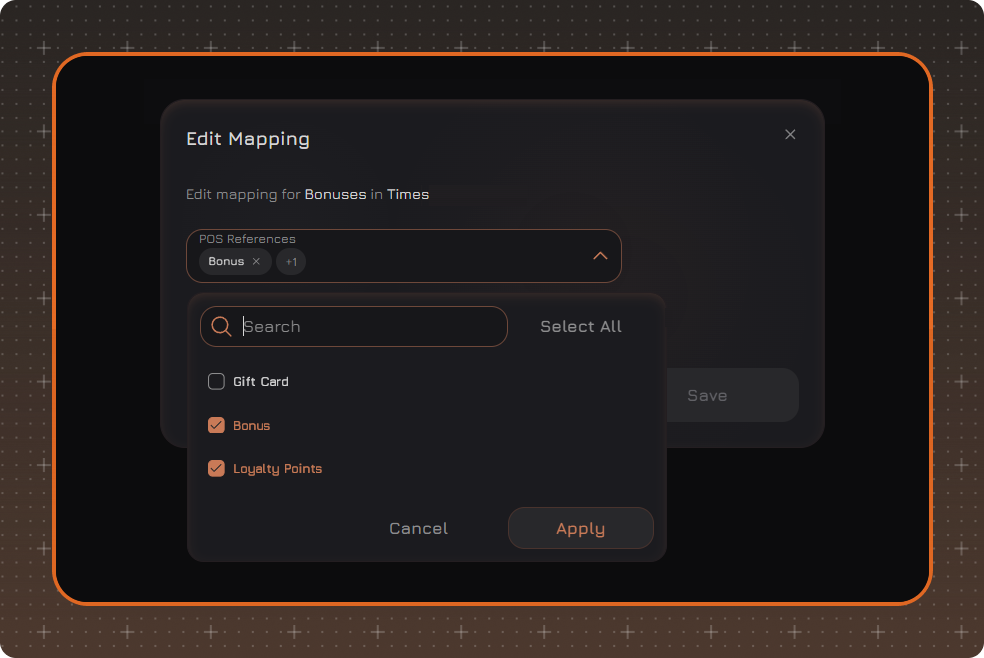
One iiko payment type can be mapped to only one CosmosResto payment type.
Refreshing Data
The list of payment types is loaded from iiko. The Refresh Data button in the upper right corner of the page starts synchronization with the POS: it loads new payment types and updates existing ones. Use it after a payment type has been added or renamed in iiko.
If the POS References field shows Nothing here yet, the data from iiko has not been loaded yet. Click Refresh Data. If the list is still empty, check the iiko connection or contact CosmosResto support.